
AI Custom Mode is designed for image-editing tasks that preset tools cannot handle. Instead of solving only one type of problem, it combines your source images with a text prompt, allowing AI to blend facial features, remove objects, change outfits, adjust poses, create virtual try-ons, and complete other custom edits.
If you have already tried the dedicated tools but need a more specific result, AI Custom Mode is a good place to start. The examples below explain how to use it and how to write clear prompts for common AI image-editing tasks.
What Is AI Custom Mode Best For?
AI Custom Mode works best for open-ended image editing. For example, you can preserve most of an image while changing one detail, or upload multiple reference images and ask the AI to combine a face, outfit, pose, or product into a single result.
For more consistent results, make your prompt specific. State what you want to change, what must remain unchanged, and what background or visual style you expect. The clearer your instructions are, the more control you will have over the final image.
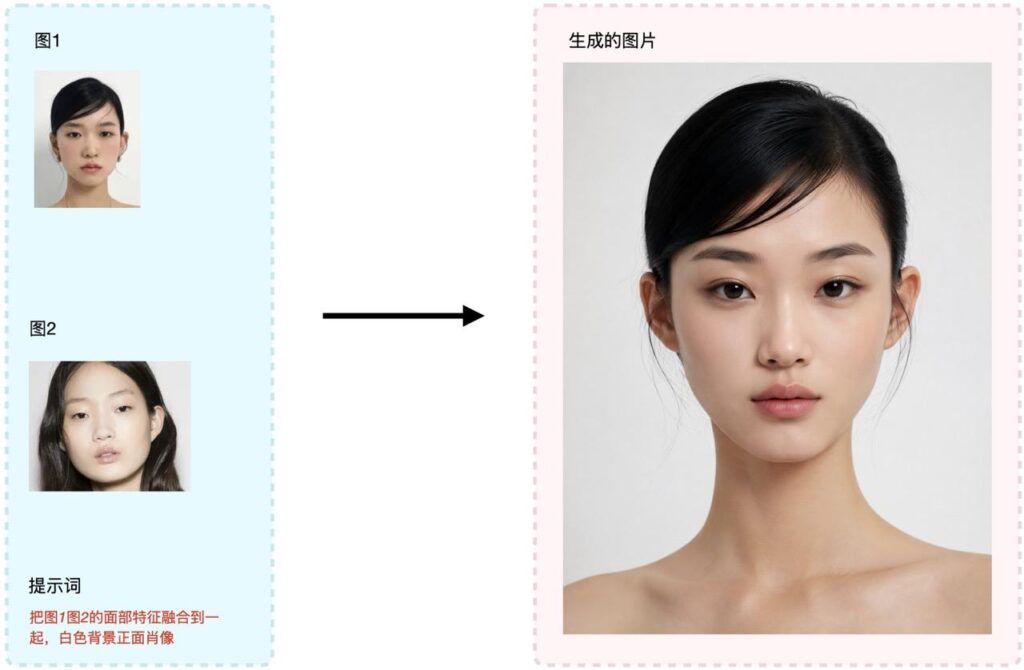
Example 1: Blend Facial Features
Face blending combines facial characteristics from two front-facing portraits. Upload one portrait as Image 1 and the other as Image 2, then describe the intended result in your prompt.
Blend the facial features from Image 1 and Image 2 into a single front-facing portrait on a white background.For the best result, use clear, well-lit, front-facing portraits. Avoid side profiles, heavy obstructions, or images with dramatically different facial expressions.
Example 2: Remove an Object
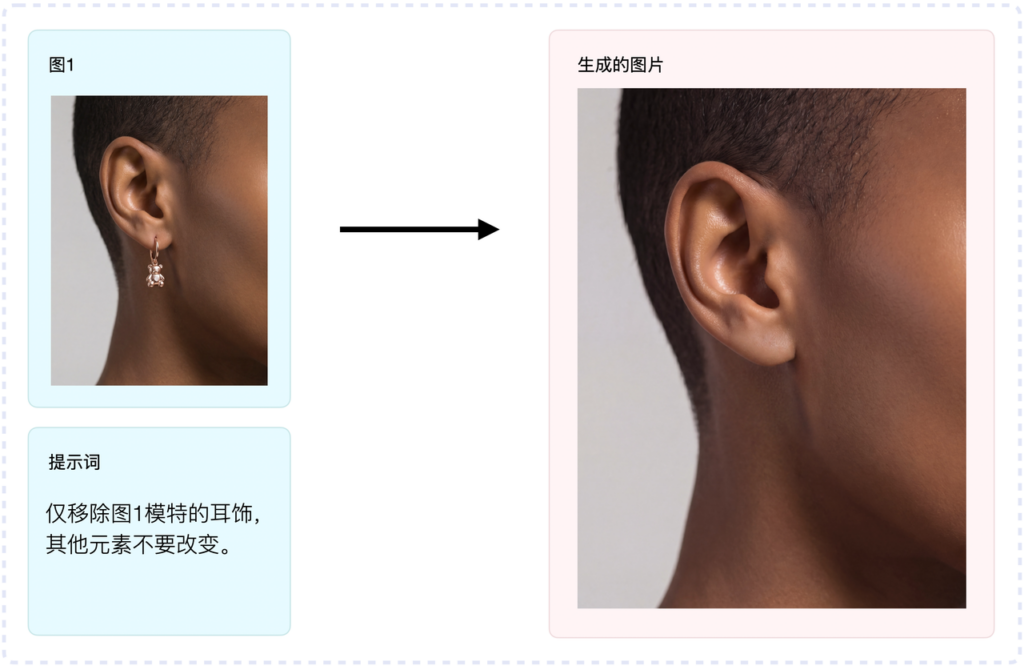
To remove an unwanted object, upload the source as Image 1 and name the exact item you want to erase. Tell the AI to preserve everything else to prevent unnecessary changes to the subject, clothing, or background.
Remove only the model's earrings from Image 1. Keep every other element unchanged.The phrases “remove only” and “keep every other element unchanged” help limit the edit to the selected object.
Example 3: Change an Outfit
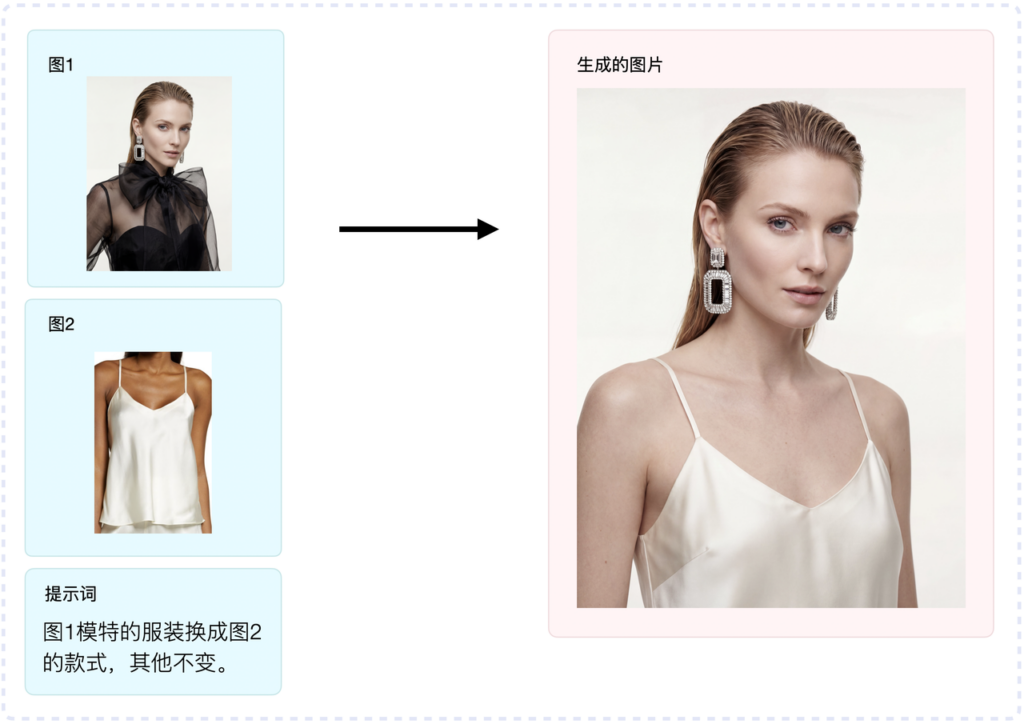
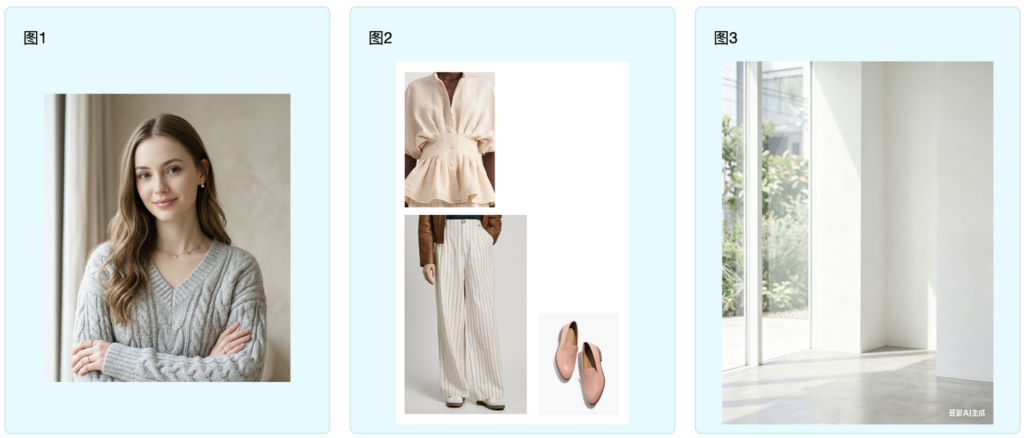
For an outfit change, use Image 1 for the person and scene, and Image 2 as the clothing reference. Ask the AI to replace the model's outfit with the style in Image 2 while preserving the rest of the original image.
Replace the model's outfit in Image 1 with the outfit shown in Image 2. Keep everything else unchanged.If the garment has a complex structure, use a high-resolution reference image that clearly shows its cut, color, texture, and details.
Example 4: Change a Person's Pose
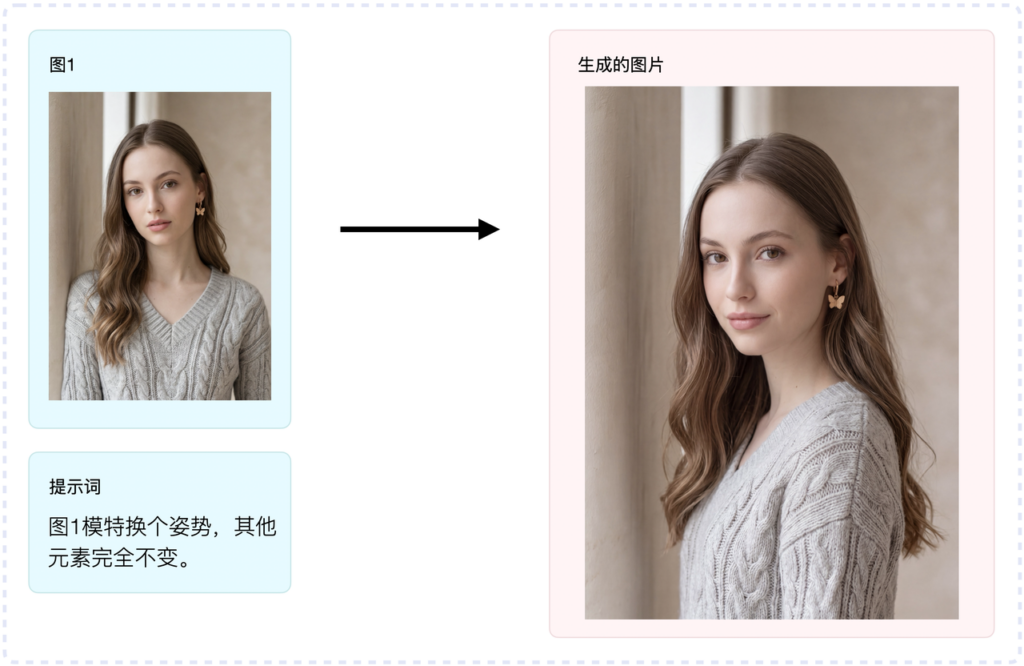
Pose editing lets you change a model's body position while preserving the person, clothing, and overall background style. A simple prompt can be enough:
Change the model's pose in Image 1. Keep all other elements exactly the same.If you have a specific pose in mind, add details such as “standing,” “sitting,” “turned to the side,” or “holding a handbag.” If not, simply asking for a different pose allows the AI to choose a natural alternative.
Example 5: Create a Virtual Try-On
A virtual try-on places a reference garment onto a person. A prompt is optional, but a short instruction such as “Dress the model in the reference outfit while keeping the pose and background unchanged” can make the result more predictable.
The clothing reference does not have to be worn by another model; a clean product image on a white background can also work. However, an on-model photo may help the AI understand the garment's shape, drape, and fit more accurately.
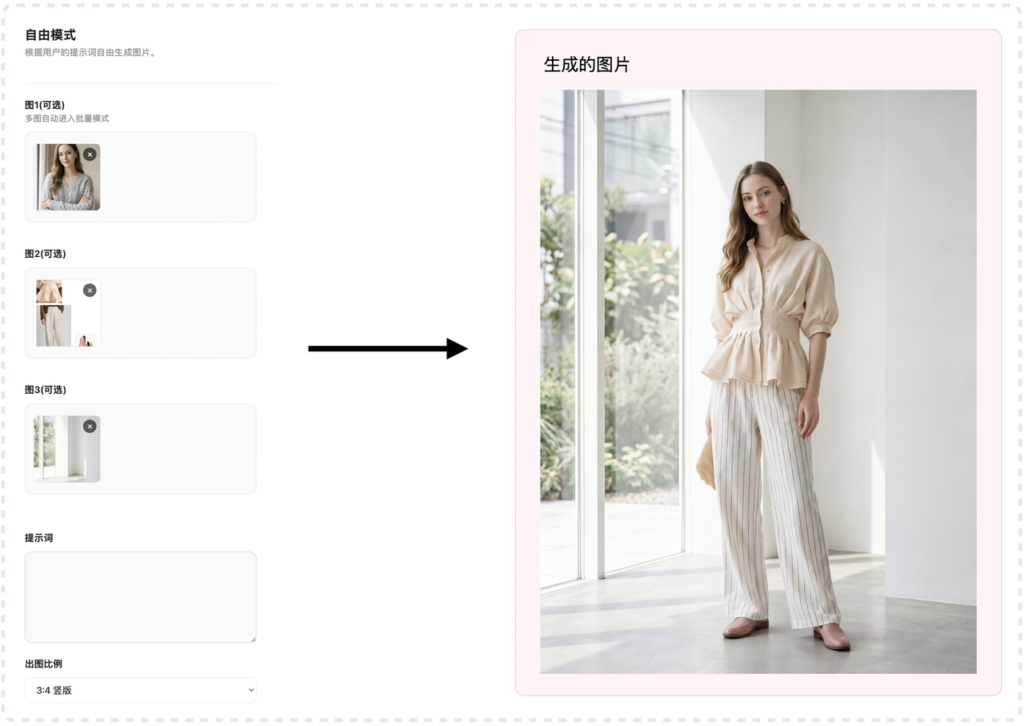
The enlarged example below shows the details of the generated garment and how naturally it blends with the model.
Tips for Better AI Custom Mode Results
- Clearly state what you want to change and what you want to preserve.
- For a localized edit, include an instruction such as “keep every other element unchanged.”
- When uploading multiple images, explain the role of Image 1, Image 2, and any additional references.
- Use sharp, well-lit portraits, clothing references, and product images with minimal obstruction.
- If the first result is inconsistent, reduce the scope of the edit and complete complex changes in separate steps.
Summary
AI Custom Mode offers a flexible way to handle custom image-editing tasks, including face blending, object removal, outfit replacement, pose changes, and virtual try-ons. The key to better results is a precise prompt: define the role of each input image, describe the intended change, and identify every element that should remain untouched.