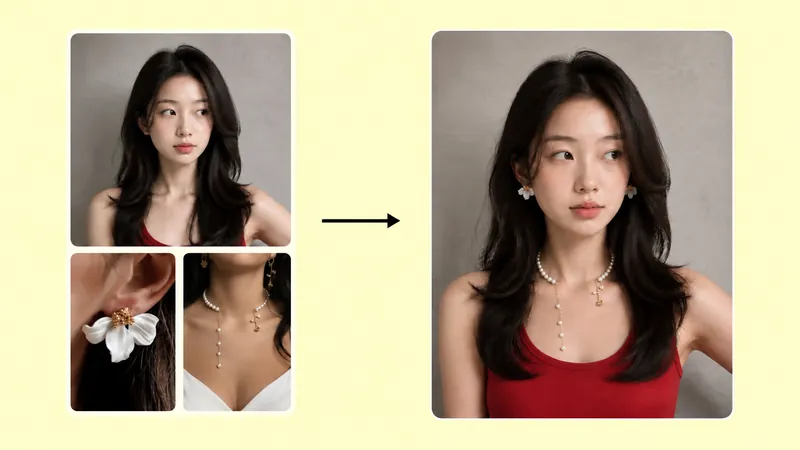
AI Jewelry Try-On Online for Coordinated Accessory Looks
This AI jewelry try-on tool lets jewelry sellers preview several accessories together on one model photo. Upload a model image and up to four jewelry product images, choose an aspect ratio and resolution, and generate a single combined try-on preview. It is useful for presenting coordinated earrings, necklaces, rings, bracelets, or a complete jewelry set in an ecommerce listing, campaign, or social post.
Version 2 is designed for wearing multiple pieces in one image. Each generation returns one combined image; it does not create the multi-pose or multi-angle image set available in Version 1. The result is a visual product mockup, so review jewelry details, placement, and apparent scale before publishing.
How to Use the AI Jewelry Try-On in 3 Steps
- Upload your jewelry product images. Add up to four clear accessory photos in the Jewelry Image field.
- Upload a model photo and set the image options. Add the person who should wear the jewelry in the Model Image field. The current form allows up to 10 model-image uploads and up to four jewelry-image uploads; these input limits do not mean V2 creates a multi-angle set. Choose a photo where the relevant area—such as the ears, neck, hand, or wrist—is visible. Set any available generation options, including resolution, before submitting.
- Choose an aspect ratio and generate. Select a ratio that fits your intended placement, check the credit amount shown on the button, and start generation. Keep the page open while it processes, then review the single combined result.
For a fuller walkthrough and image-preparation advice, read the AI Jewelry Try-On Tutorial V2.
Four Jewelry Types You Can Combine
- Earrings: Combine studs, hoops, or drop earrings with other pieces. A model photo with visible ears helps the result show the design clearly.
- Necklaces: Preview pendants, chains, or layered styles alongside earrings. Choose a model image with an unobstructed neckline.
- Rings: Add a ring to a coordinated look and use a photo where the hand is visible. Check the generated placement and apparent size against the original product photo.
- Bracelets and sets: Present bracelets with a matching necklace, earrings, or ring to show how a coordinated set may look when worn together.
Why Use AI Jewelry Try-On for Product Photos?
- Show how pieces work together. A single model image can present multiple accessories as a coordinated look instead of showing each item only by itself.
- Prepare listing and campaign visuals. Create a wearable preview for product pages, collection launches, email campaigns, or social content without arranging a new photo session for every combination.
- Compare styling ideas. Change the jewelry inputs or model photo to explore different combinations. Generate each version separately and choose the result that best represents the products.
- Keep product details under review. The generated image is a mockup, not a guarantee of exact fit or scale. Compare stones, metal color, setting, and placement with the source images before using it.
Tips for Better Multi-Accessory Results
- Use sharp, well-lit product photos with the jewelry separated from distracting objects.
- Choose a model photo that clearly shows every body area needed for the selected pieces. Hair, hands, collars, or sleeves can obscure jewelry placement.
- Keep the number of accessories within the four-image limit and avoid combining products whose placement would overlap heavily.
- Select an aspect ratio that leaves room around the jewelry and suits the destination. Use a higher resolution when the image will be displayed larger, and check the current credit cost before generating.
- Inspect the result at full size. If a product shape, stone, clasp, or apparent scale looks different from the source, try clearer input images or a better-matched model photo.
FAQ
What is virtual jewelry try-on?
Virtual jewelry try-on creates a visual preview of jewelry on a person by combining product images with a model photo. This V2 tool can place multiple jewelry pieces together in one generated image.
How do I use virtual try-on for rings and necklaces?
Upload clear product images and a model photo that shows the hand for rings or the neckline for necklaces. Select the output ratio and resolution, generate the preview, and check the placement and product details against the originals.
How accurate are virtual jewelry try-on results?
Results depend on the clarity and angle of the source images. They can help preview a style, but they should not be treated as exact measurements, fit advice, or a guarantee that every product detail will be reproduced perfectly.
Does V2 create a multi-image or multi-angle set?
No. V2 combines multiple jewelry pieces in one model image and returns one image per generation. It does not create the multi-pose or multi-angle set available in V1.