
Jewelry Image Retouch
Retouch jewelry product photos with AI: remove dust, putty and blemishes, sharpen gemstone details, and choose a clean white background. Online and free to start.
Upload Images for Retouching
Drag and drop or click to upload
Upload at least 1 image. Multiple images will be processed in batch mode. Maximum 18 images.Point consumption is not fixed and fluctuates according to the cost.
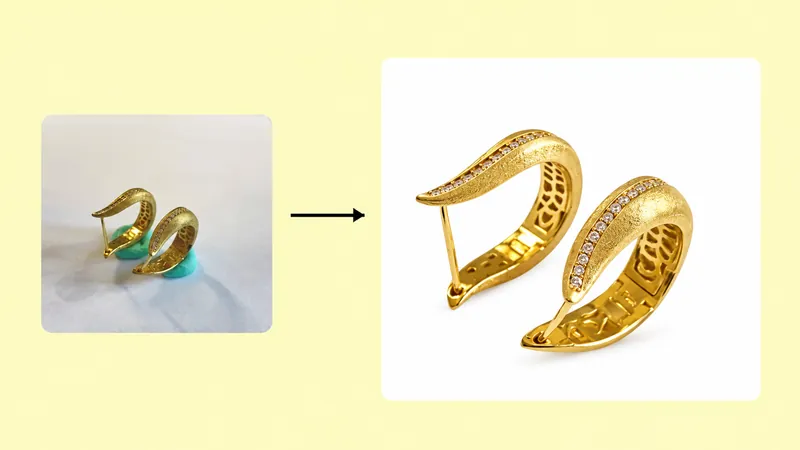
AI Jewelry Photo Editor for Cleaner Product Images
Improve existing jewelry product photos with an AI jewelry photo editor built for retouching. Clean distracting dust and blemishes, refine clarity and material texture, and choose whether to use a white background. The tool runs entirely online in your browser, and it is useful for sellers preparing catalog images, product pages, and ecommerce listings.
The default prompt asks the AI to preserve the product's composition, position, shape, and color while improving image quality. Keep those instructions when adding your own cleanup requests, and compare the result with the original to check fine details.
Free Online AI Jewelry Photo Editor — No Download, No Photoshop
There is nothing to install: upload a photo on this page and retouch it in your browser, on desktop or mobile. New accounts include 150 free credits, so you can test the editor on a few of your own product photos before buying a credit plan. Start with one image, check the result against the original, then batch-process the rest of the set with the same settings. See pricing for credit plans when you need more.
How to Retouch Jewelry Photos in 3 Steps
- Upload your product photos. Drag images into the upload area or click to select them. Start with one image to test the result. The current tool accepts up to 18 images for batch processing.
- Review the retouching settings. Keep or refine the Prompt, then adjust Weight gradually. Choose White BG for a white background and Remove Putty when visible mounting material needs cleanup. Enhance Clarity is available when extra sharpening is useful.
- Choose the resolution and generate. Select 1K or 2K, review the displayed credit cost, and click Start Generating. Keep the page open while processing. Review the generated images before downloading them; credit consumption can change.
Jewelry Photo Retouching by Product Type
Earrings
Clean distracting marks around earring edges, hooks, and decorative details. Review both earrings together so the pair still looks consistent.
Necklaces
Refine the presentation of chains, pendants, and clasps. Check fine links and stone settings against the original after retouching.
Rings
Use cleanup and clarity settings for ring product photos. Inspect prongs, engravings, gemstone edges, and reflections before choosing the final image.
Bracelets and Jewelry Sets
Apply a similar retouching approach across related products. Review repeated links, individual pieces, and material tones to keep the collection visually coherent.
Retouching Jewelry Photos for Etsy, Shopify, Amazon and eBay
Each marketplace rewards slightly different images. Retouch once with the strictest requirement in mind, then export sizes per channel:
- Amazon: the main image needs a pure white background (RGB 255, 255, 255) and a longest side between 1,000 and 10,000 pixels to enable zoom. Use the White BG option and the 2K resolution so gemstones and settings stay sharp when shoppers zoom in.
- Etsy: there is no white-background rule, but bright, clean photos win clicks, and Etsy recommends images of at least 2,000 pixels on the shortest side. Remove dust and putty marks so handmade details, not flaws, get the attention.
- Shopify: product images can be up to 5,000 × 5,000 pixels, and a consistent look across the whole catalog matters more than any single image. Batch-retouching up to 18 photos with the same settings keeps a collection visually uniform.
- eBay: images must be at least 500 pixels on the longest side, and 1,600 pixels or more is recommended for zoom. A clean background and accurate metal color reduce returns and "item not as described" complaints.
Why Use AI Jewelry Photo Retouching?
- Prepare cleaner product presentations for listings and catalogs.
- Test different cleanup settings before applying them to a larger shoot.
- Use white backgrounds when you need a consistent product presentation.
- Process several photos together instead of repeating each upload separately.
- Get marketplace-ready images without reshooting products you already photographed.
Tips for Better Retouching Results
- Use a clear original with the jewelry in focus; heavy blur limits recoverable detail.
- Increase Weight gradually and watch for lost texture or altered small parts.
- Keep the prompt's product-preservation instructions. Add specific requests for watermark text or unwanted background lines when needed.
- Turn off White BG to retain the original scene. Check Remove Putty before generating.
- Compare metal color, gemstone details, edges, and reflections with the source image.
Frequently Asked Questions
How to edit jewelry photos?
Start with a clear product photo, choose the cleanup and background settings, and generate a test image. Adjust one setting at a time if the result looks too strong. For illustrated instructions, read the AI jewelry photo retouching guide.
Is there a free online AI jewellery photo editor?
Yes. This editor runs online in your browser — no app download and no software to install — and new accounts start with 150 free credits. Upload one jewellery photo, keep the product-preservation prompt, and generate a retouched version to compare with your original before spending any paid credits.
Can I edit jewelry photos without Photoshop?
Yes. Traditional jewelry retouching in Photoshop means manual dust removal, masking, and color correction layer by layer. Here you describe the cleanup in the prompt instead: the AI removes putty and blemishes, evens out the background, and sharpens detail while keeping the product's shape and color. You still review every result, but a single photo takes minutes instead of a long editing session.
Is there an AI photo editor that can improve jewelry photos?
Yes. This tool offers AI cleanup, material enhancement, and clarity controls for existing jewelry photos. Results depend on the source image; check small stones, engravings, and edges rather than assuming every detail has been recovered accurately.
Can I keep the original background?
Turn off White BG when you want to retain the original scene. Use the prompt to describe any background dust or marks you want cleaned.
Can I retouch multiple jewelry photos at once?
Yes. The current upload area supports up to 18 images in batch mode. Test one photo first, then review the displayed credit cost before processing more.
Is it suitable for other product categories?
Yes, images of other products can also be used. For general product photos rather than jewelry, try the AI product retouching tool, which is tuned for non-jewelry items.
Next: On-Model Photos and Full Image Sets
Once a product photo is clean, you can go further with the same image. Put the piece on a model with the AI virtual jewelry try-on, or generate a complete listing set — lifestyle, on-model, and white-background views — with the AI jewelry image set generator.