
How to Choose AI Jewelry Photo Retouching? If you want to turn blurry, imperfect ring or necklace photos into high-definition e-commerce product images, AI retouching tools can help enhance product clarity, metallic luster, and fine detail texture.
However, many users encounter an issue:After AI retouching, the product's position, angle, and even overall composition have changed, failing to align with the original image.
In fact, AI jewelry retouching can be divided into two approaches:
- Keep original composition: Retain the original product position, camera angle, and proportions as much as possible, focusing only on fixing flaws and enhancing clarity and material textures..
- Re-optimize composition: Allow the AI to adjust the background, product placement, and overall layout—ideal for transforming casual phone snapshots into professional product photos..
Through real-world retouching examples of necklaces and rings, this article compares two AI product photo retouching tools from TheMiniTech to help you choose the right approach for your image needs..

Key Takeaway: Choose the Right Tool Based on Your Composition Needs
| Need | Recommended Tool | Key Features |
|---|---|---|
| Retain product position, perspective, and original composition | Product Retouching | Enhance sharpness, edges, and material texture based on the original image |
| Looking to optimize background and composition for a more complete studio photography look | AI Product Retouching V2 | Retouch the product while allowing AI to reorganize the composition |
The following sections introduce the usage, suitable scenarios, and key considerations for both tools.
Method 1: Use Product Photo Retouching to Preserve Original Composition
Product Photo RetouchingSuitable for photos that are already shot and have an acceptable composition, but still need improvements in clarity, edges, or texture rendering.. Before and after processing, the product's position and perspective in the frame remain largely unchanged, making it ideal for sets of product images that require consistent camera angles and layouts..
Steps
- Open the Product Photo Retouching tool and drag the product image you want to process into the upload area..
- Choose whether to keep the original background based on your needs.. If you wish to keep the existing background, please disable the background replacement options..
- If no additional modifications are required, you can keep the default settings and start generating..
- Once generated, compare whether the product's edges, details, and materials have improved, while also checking if the composition remains consistent..
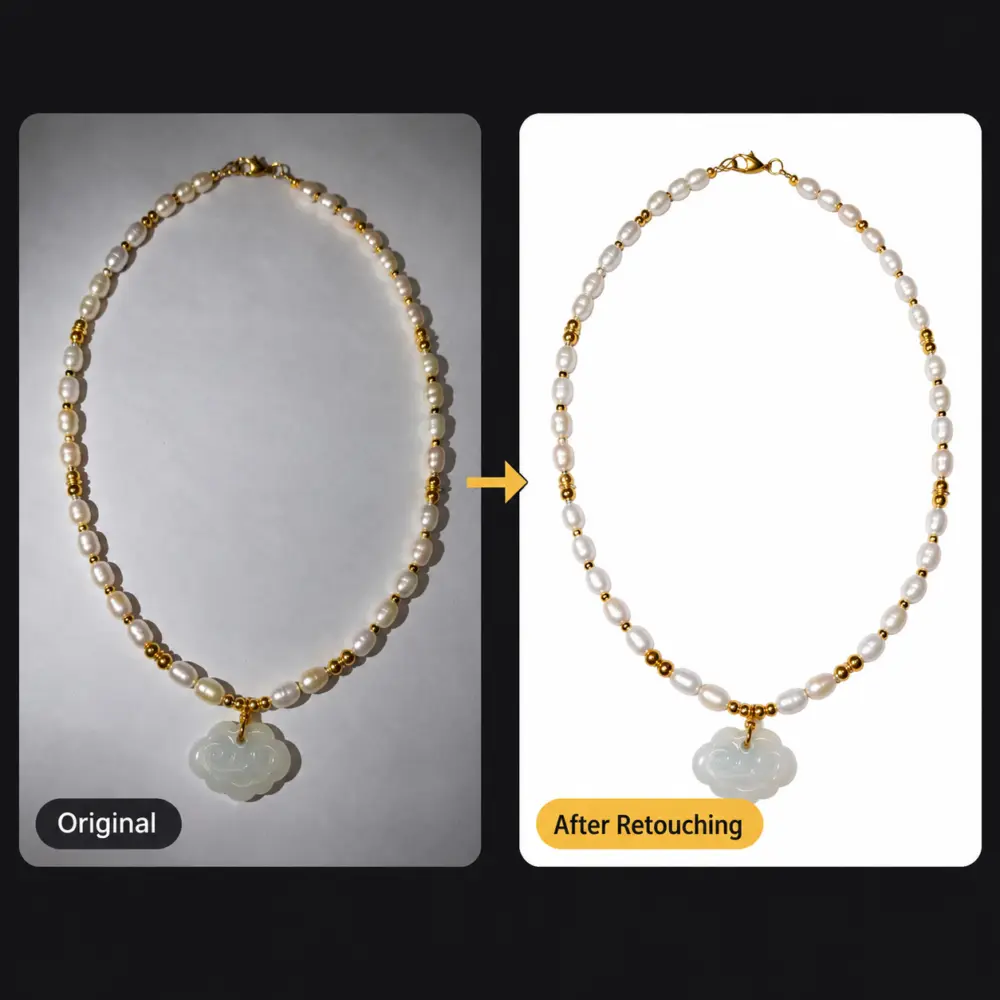
This approach is closer to traditional retouching: the original image determines the composition, while AI improves the image quality.. It will not proactively change the product angle or rearrange the subject's position for you, so the original image's composition should already be usable..
How to Remove Text from an Image
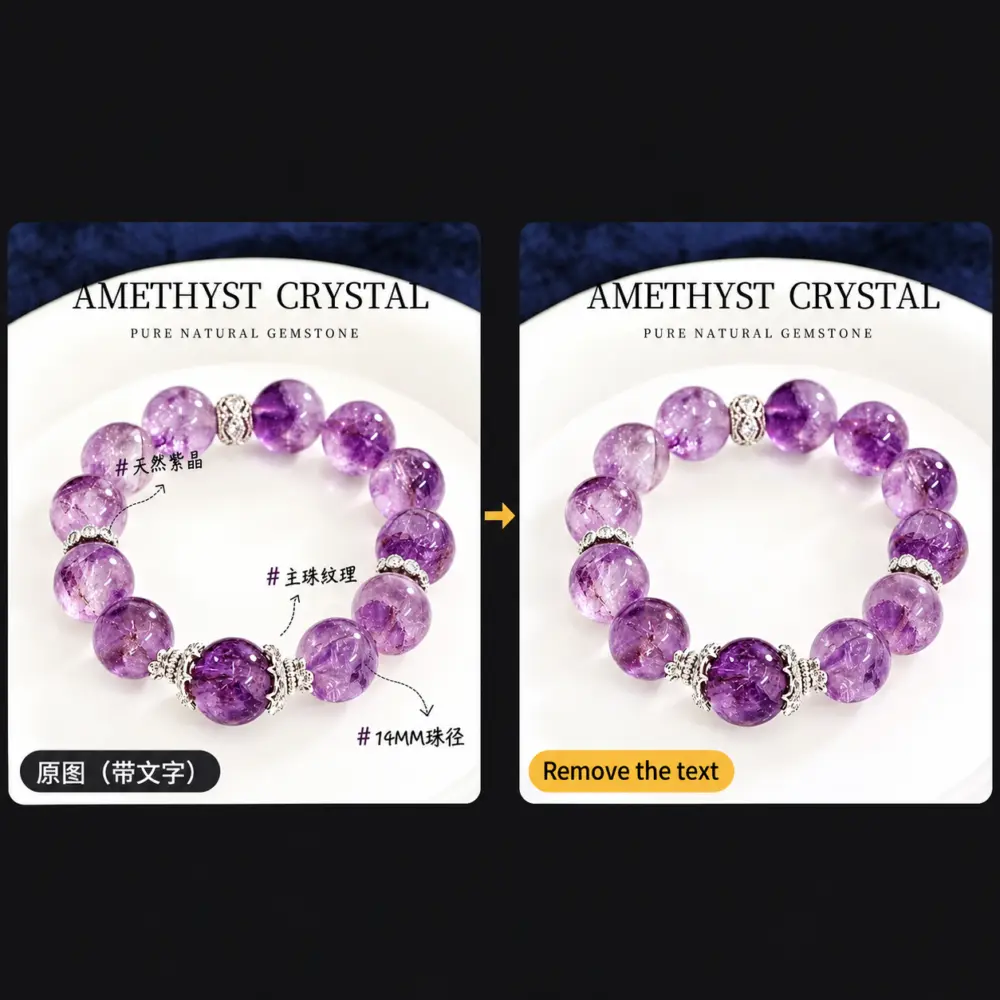
If the original image contains annotations or unwanted text, you can type "remove text" into the prompt box and then run the generation.. After generating, zoom in to inspect the area where the text was located to confirm that the background texture and product edges look normal..
Method 2: Use Product Image Retouch V2 to optimize the composition
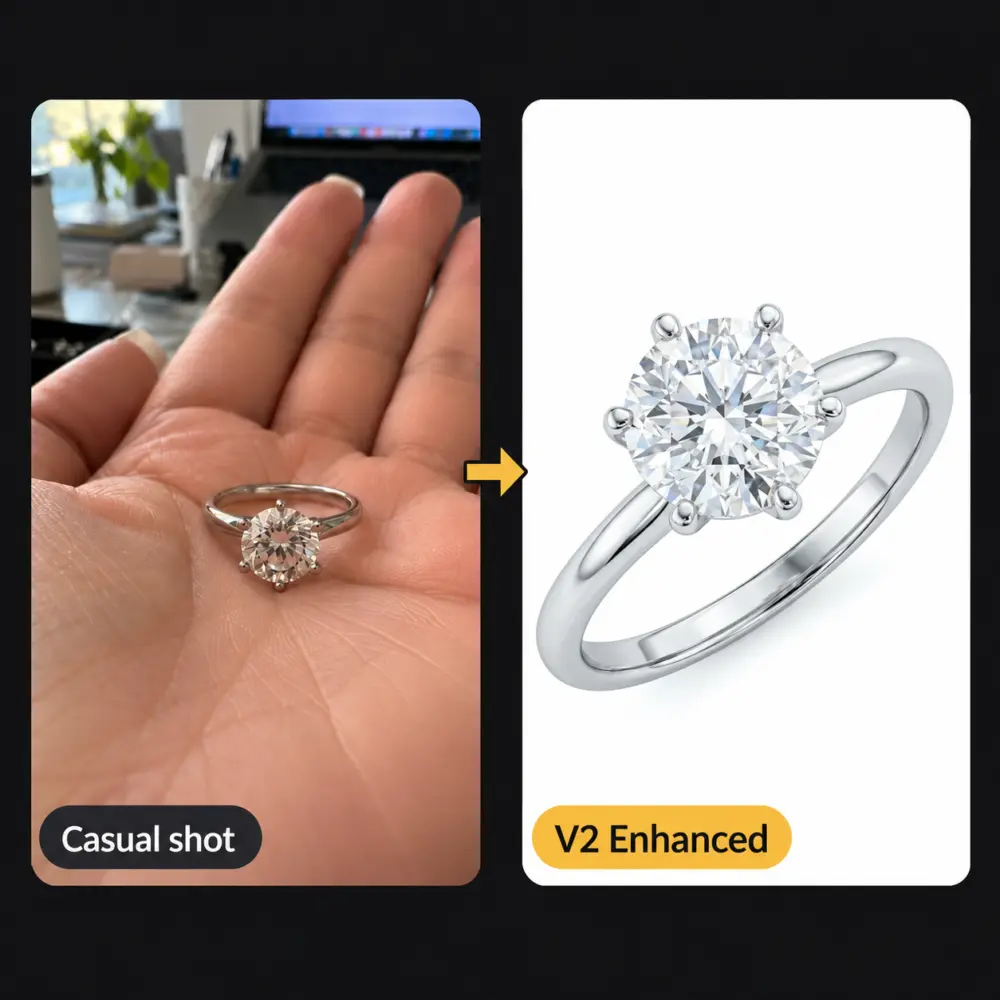
AI Product Image Retouch V2Suitable for casual compositions, cluttered backgrounds, or turning quick phone snapshots into professional product photos. It not only enhances product clarity and texture, but may also adjust the background, subject position, and overall composition.
Preparation Before Uploading Images
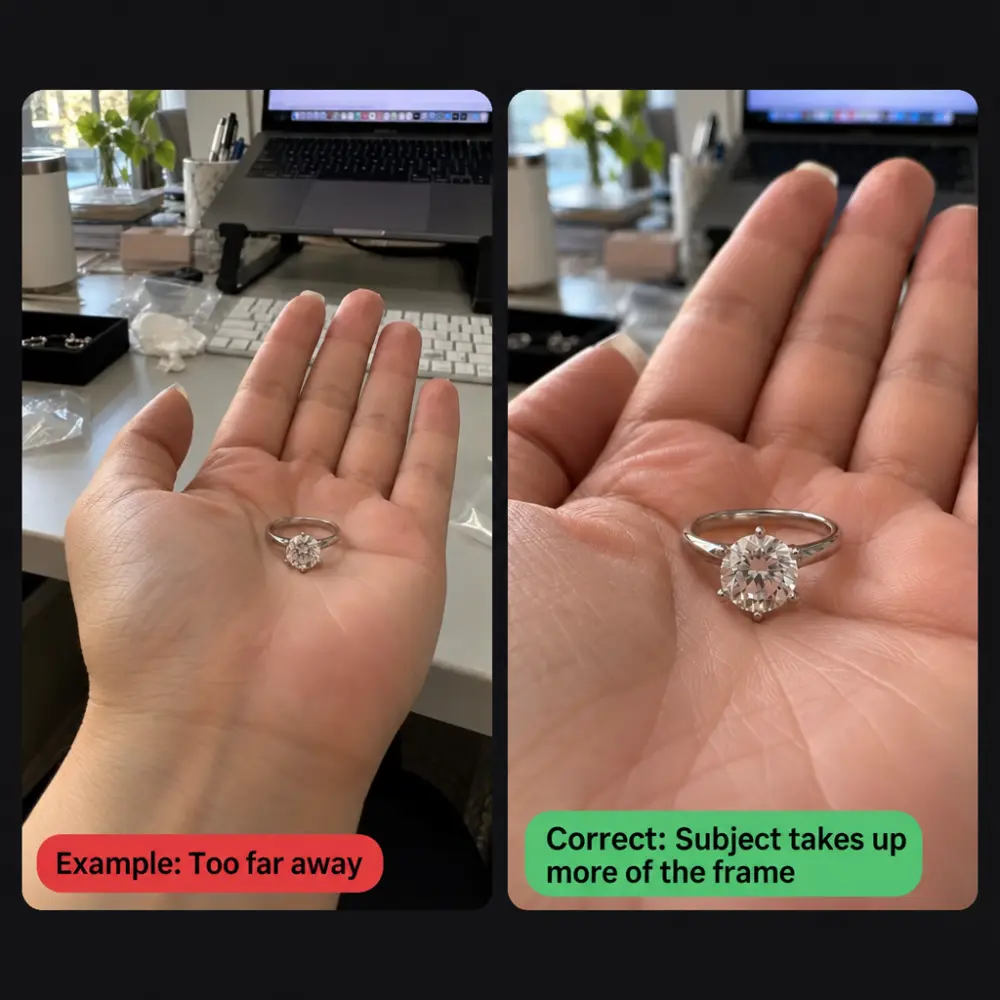
Try to choose photos where the product subject occupies a relatively large portion of the frame. If the product is too far from the camera or too small in the frame, AI may not accurately restore gemstone facets, metal textures, or product contours. Move closer to the product while shooting, avoiding severe obstruction and excessive blur.
Steps
- Open AI Product Photo Enhancer V2 and upload a product photo with a clear subject and appropriate proportions.
- Check whether the product details in the uploaded image are complete, avoiding key areas being blocked by fingers, reflections, or shadows.
- Start generation and wait for the process to complete.
- Check if the new composition meets product display needs, while verifying the product's shape, color, texture, and setting details.
How to Choose Between the Two AI Product Photo Retouching Tools
- Already have a good composition and just want to enhance the texture:Choose Product Photo Retouching. It is better suited for main images, detail images, and photos that need to maintain the same camera angle and layout as other SKUs.
- The original photo is a casual snapshot, and you want to improve both the background and composition:Choose AI Product Photo Retouching V2. It is better suited for assets with suboptimal composition and cluttered backgrounds, where the product subject is still clear and intact.
- Must strictly align with the original image:Do not prioritize V2, as recomposition may alter the subject's position and visual relationships.
- Original image is tilted or the subject is too small:The Standard version only refines the original composition and cannot fundamentally resolve composition issues; it is recommended to reshoot or switch to V2 to try reorganizing the scene.
Practical tips to improve generation quality
- Prioritize using clear, uncompressed original images to preserve the product's true colors and complete contours.
- Avoid strong reflections, severe motion blur, or large-area occlusions, as these may affect detail restoration.
- Zoom in after generation to check logos, text, gemstone facets, chain links, and metal edges.
- Before publishing on e-commerce platforms, confirm that the product structure in the output image matches the physical item, avoiding mistaking AI-generated details for real product features.
FAQ
Does product image retouching change the original composition??
The standard version mainly enhances the image based on the original, typically preserving the product's position and perspective.. If you need to maintain a consistent composition across a set of product images, we recommend using this version first..
Can V2 guarantee that the product position remains completely identical to the original image??
No.. A key feature of V2 is allowing the AI to re-optimize the composition, so the subject position, background, and visual balance may change.. When strict alignment is required, the standard version should be used..
What to do if there is text or annotations on the image?
You can enter "remove text" in the prompt box of Product Image Retouch. After generation, please check the product edges and background near the text to ensure the repaired area looks natural and complete.
Summary
When choosing an AI product image retouching tool, simply determine first whether you want to preserve the original composition: if you need to maintain the product's position and perspective, useProduct Image Retouch; if you want to optimize the background and composition while improving clarity, useAI Product Image Retouch V2. If you are still unsure, you can test with the same image respectively, and then choose the final result based on product consistency and your store's visual style..