
TheMiniTech AI image retouching tool is designed for commercial product photo enhancement, especially for jewelry, accessories, small products, and e-commerce product images. It can help remove visual impurities, improve clarity, enhance material texture, and adjust background details so that original product photos look more suitable for product pages, advertising images, and independent online stores.
This tutorial explains how to use the main settings of the AI image retouching web tool, including retouching strength, prompt writing, background dust removal, clay removal, white background, and clarity enhancement. These settings are especially useful when refining jewelry product photos for e-commerce display.
What Is the AI Image Retouching Tool Best For?
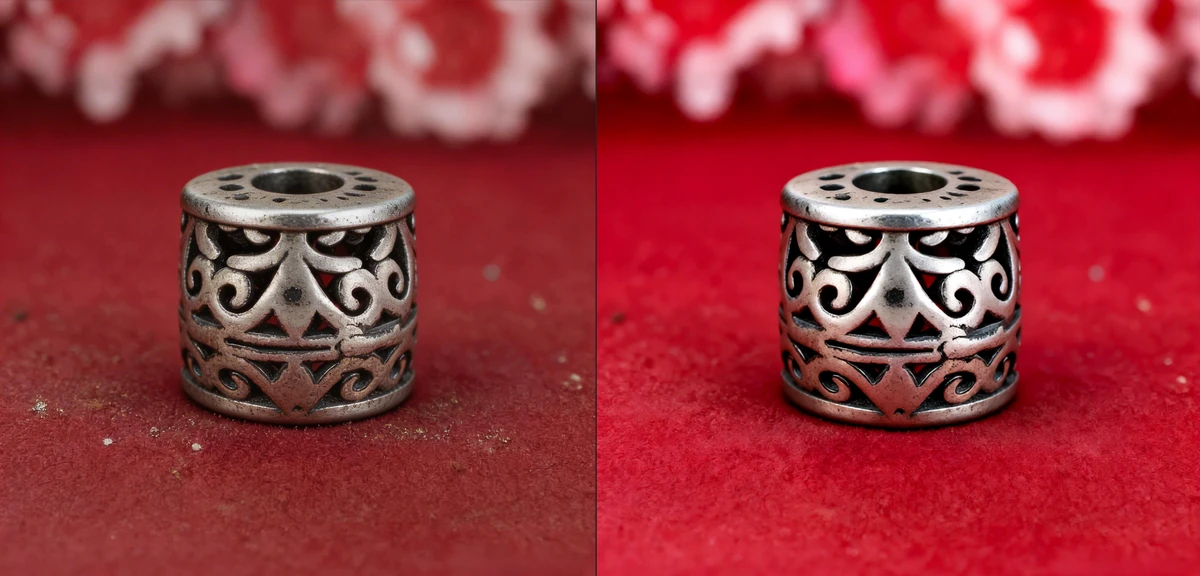
If your original product photo has dust, small impurities, a messy background, dull colors, weak texture, or insufficient sharpness, you can use this image retouching tool to improve it. For metal accessories, jewelry, watches, rings, earrings, and similar reflective products, retouching can often create a stronger commercial look.
The tool is suitable for sellers who need cleaner product images without a full manual editing workflow. It can help create more polished visuals for marketplace listings, Shopify-style stores, detail pages, social media product posts, and advertising creatives.
How to Set the Retouching Strength
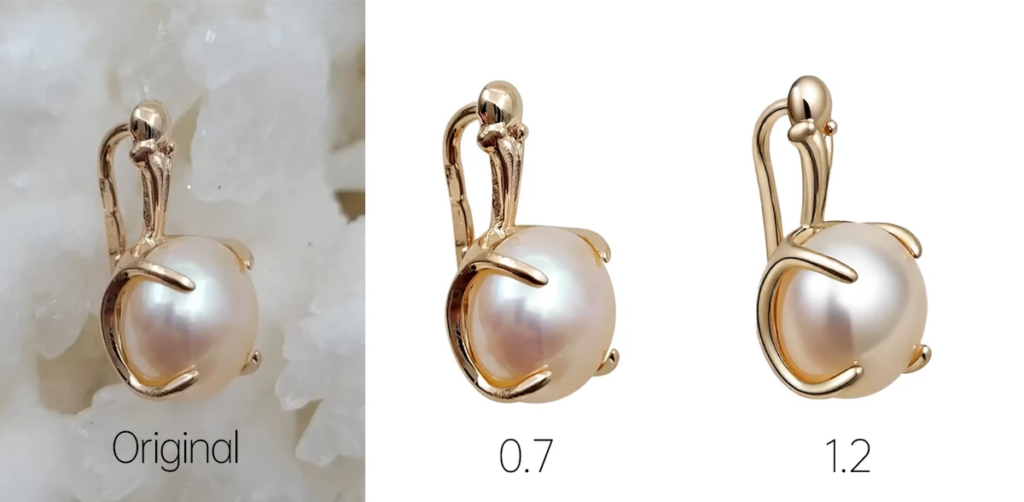
The retouching strength ranges from 0 to 2, and the default value is 1. This setting controls how strongly the tool enhances the image. A higher value usually produces a stronger retouching effect, such as more visible metallic highlights, richer colors, and a more polished commercial texture.
However, a higher value is not always better. If the retouching strength is too high, some product details may be lost, especially fine textures, edges, inlaid structures, gemstones, or small decorative parts. For most product photos, start with the default value of 1. If the result is too subtle, increase the value gradually.
How to Write a Good Retouching Prompt
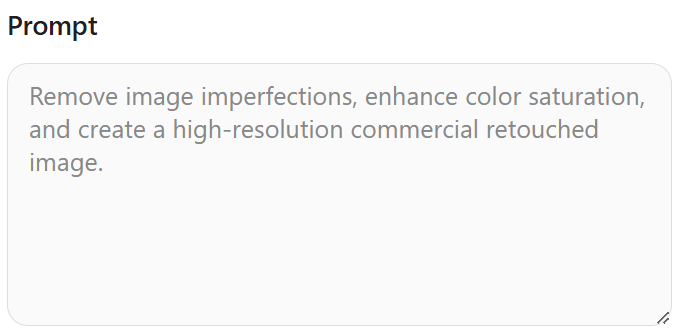
The default prompt is usually best to keep the structure of the default prompt because it already covers the most common retouching goals: cleaning the image, improving color, and generating a high-quality commercial result. If you do not want the colors to become too vivid, remove the phrase “enhance color saturation”
If the original image has background watermark text, lines, dust, or other unwanted marks, add a more specific instruction after the default prompt. For example:
Remove image impurities, increase color saturation, generate a high-definition commercial retouched image, and remove watermark text and background lines.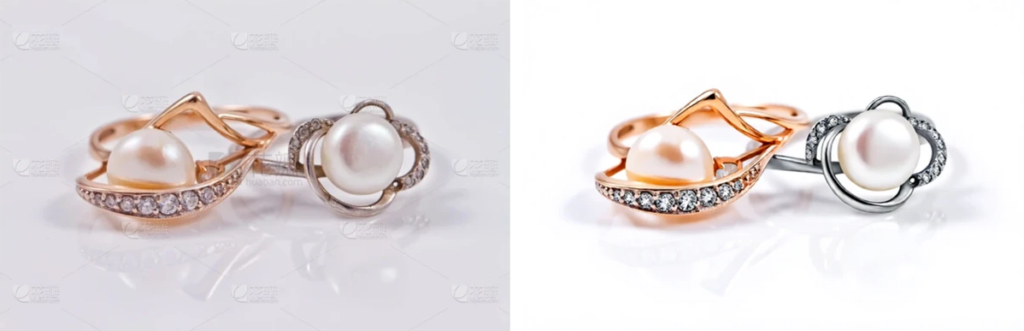
How to Remove Background Dust and Impurities

If the background contains dust, dirty spots, small particles, shooting marks, or other distractions, describe the problem clearly in the prompt. Useful instructions include “remove background dust,” “clean background impurities,” and “keep the product subject unchanged.”
This helps the AI focus on the background while reducing unnecessary changes to the product itself. For jewelry and accessories, this is important because the product shape, reflection, gemstone detail, and metal texture should remain accurate.
When to Use the Clay Removal Option
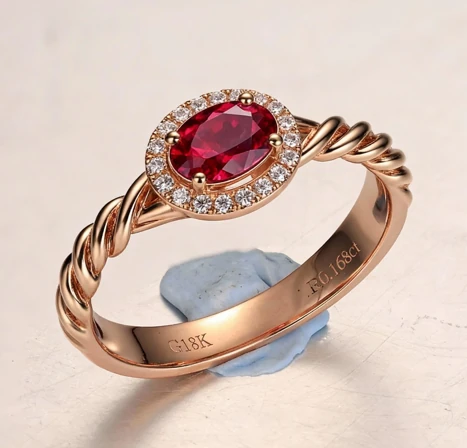
When photographing jewelry, small products are often fixed with clay, adhesive putty, support glue, or hidden stands. If these support materials are visible in the image and you want to remove them, enable the clay removal option.
This option is especially useful for jewelry product photos, including rings, earrings, pendants, bracelets, and other small accessories. It helps clean the product presentation while keeping the main subject visually clear.
When to Choose a White Background

If you want the image background to become white, enable the white background option. This is useful for marketplace main images, product catalog photos, and e-commerce images that require a clean and consistent background.
If you want to keep the original scene, texture, or atmosphere of the photo, do not enable the white background option. The right choice depends on the final use of the image: white backgrounds are usually better for product main images, while lifestyle or detail page images may benefit from preserving the original background.
Should You Enable Clarity Enhancement?
Clarity enhancement is enabled by default and works well for most product photos. It can make the image sharper and more suitable for commercial display. If the result looks too sharp, the edges become too hard, or the product feels unnatural, turn this option off and generate again.
For reflective materials such as metal, jewelry, glass, and gemstones, start with the default setting first. Then adjust based on the output. This helps balance sharpness, texture, and realism.
Tips for Better AI Product Photo Retouching
- Start with the default retouching strength of 1, then adjust gradually.
- Do not set retouching strength too high at once, or product details may be lost.
- Keep the default prompt structure and add specific instructions only when needed.
- Clearly state whether you want to remove watermarks, dust, clay, or background impurities.
- Use a white background for marketplace main images, and keep the original background for lifestyle or detail images.
- If the output is too sharp, disable clarity enhancement and generate again.
Conclusion
The key to using the AI image retouching tool is choosing the right retouching strength and writing a clear prompt. The default strength of 1 works for most product photos. Increasing the value can enhance commercial texture, but it may also reduce fine details if pushed too far.
For jewelry and accessory product images, combine prompt instructions with options such as clay removal, white background, and clarity enhancement. With the right settings, you can create cleaner, sharper, and more professional retouched images for e-commerce product pages, ads, and independent store displays.
Try it here: AI image retouching web tool.