
The AI Jewelry Lifestyle Photo Tool lets you blend earrings, necklaces, rings, and other jewelry products naturally into a style reference image. It replaces the original jewelry and creates polished lifestyle photos for product displays, marketing, and ecommerce.
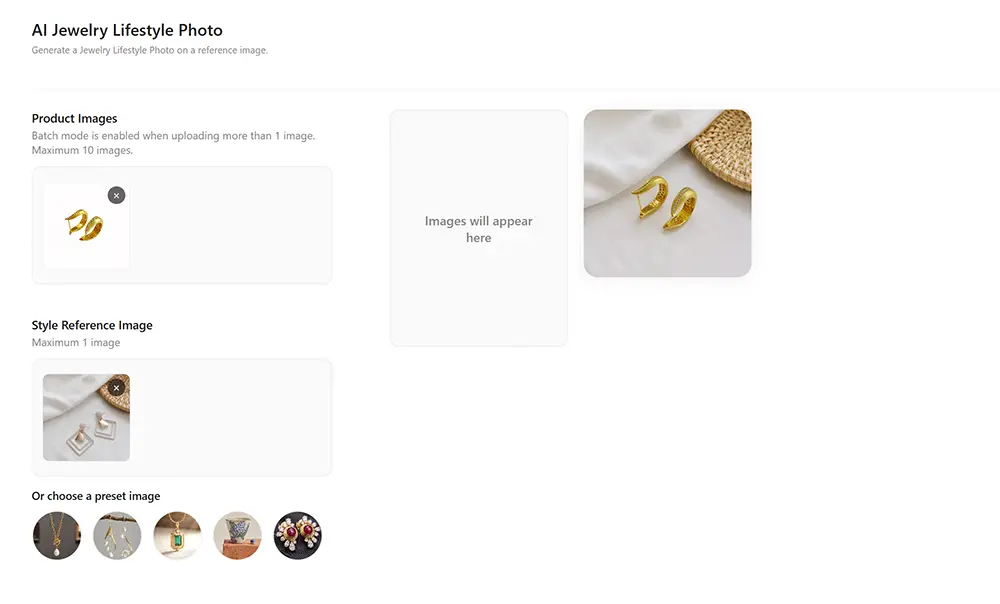
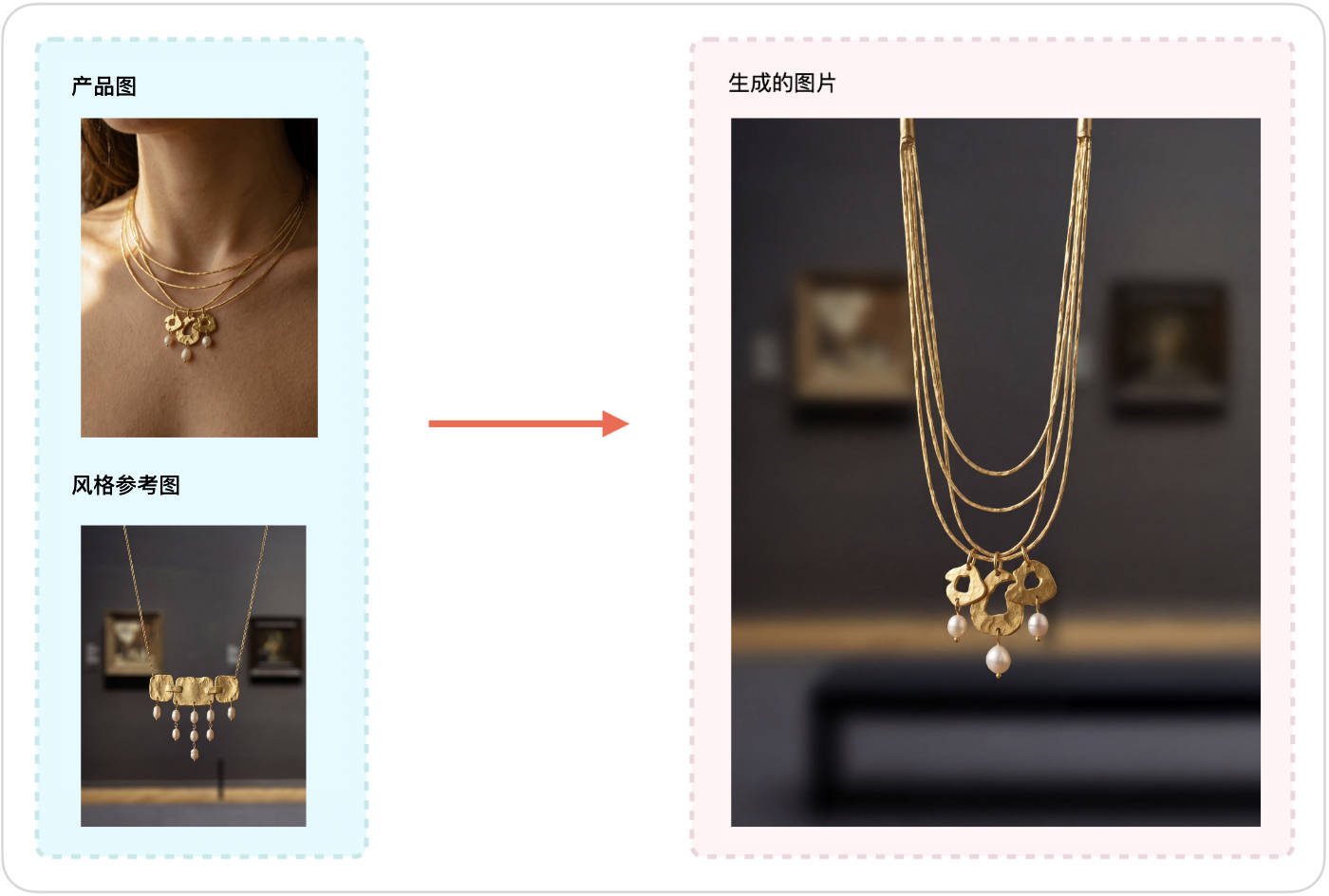
To get started, upload your jewelry product image as Image 1 and the lifestyle image you want to reference as Image 2. The tool preserves the reference image's overall composition and visual style while replacing its jewelry with your product. The steps below explain the complete process and how to generate multiple images in batch mode.
Step 1: Upload Your Jewelry Product Image as Image 1
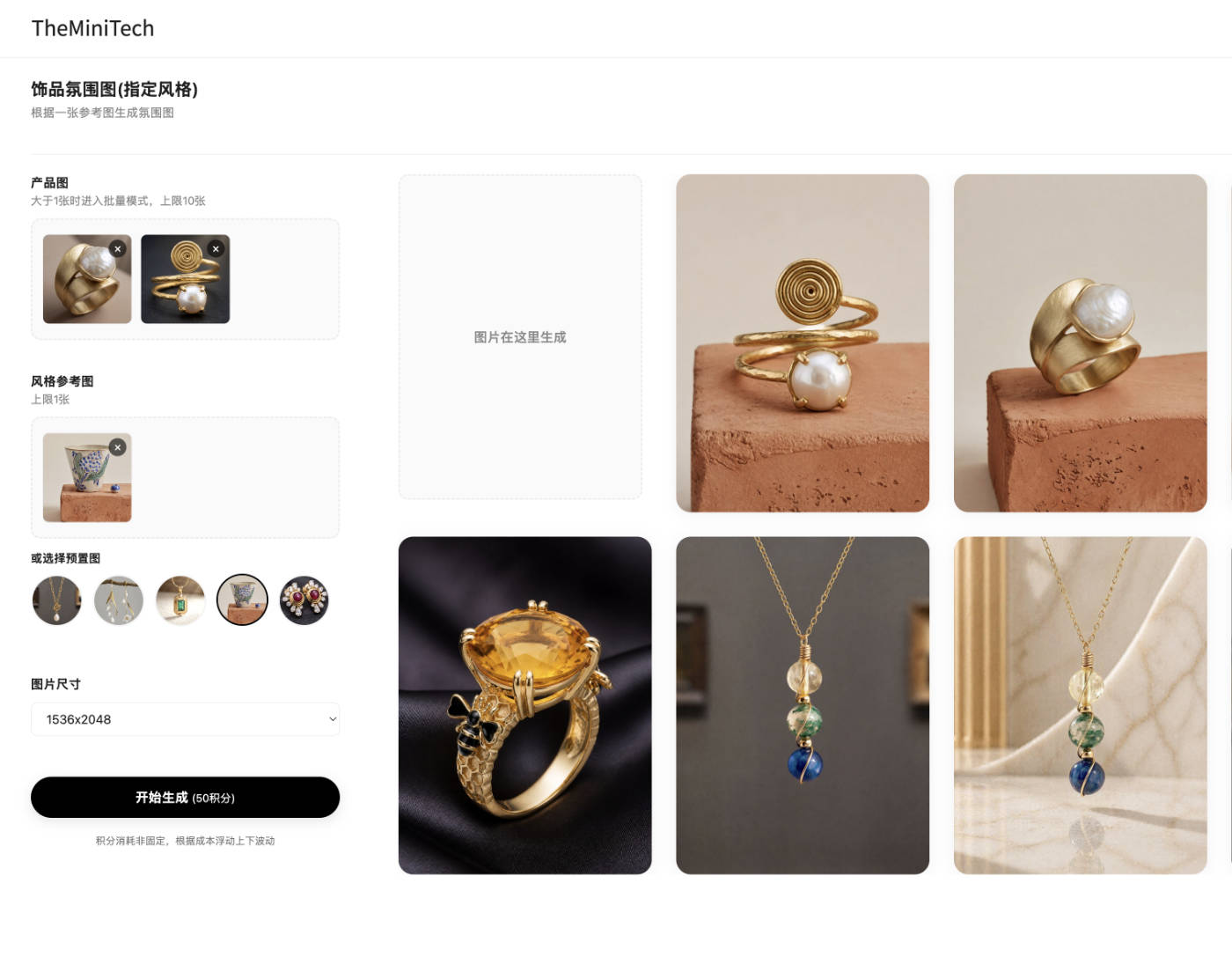
Upload the jewelry product photo you want to place in a lifestyle scene to the Image 1 area. For a single image, upload one product photo. To process several products at once, upload multiple images and the tool will automatically switch to batch mode.
Use a sharp product photo with complete details and minimal obstruction. A clear source image helps the AI recognize the jewelry's shape, material, color, and design more accurately.
Step 2: Upload a Style Reference as Image 2
Upload a style reference to the Image 2 area. This image guides the composition, background, lighting, and overall mood of the generated result. The reference formats shown below are all supported.
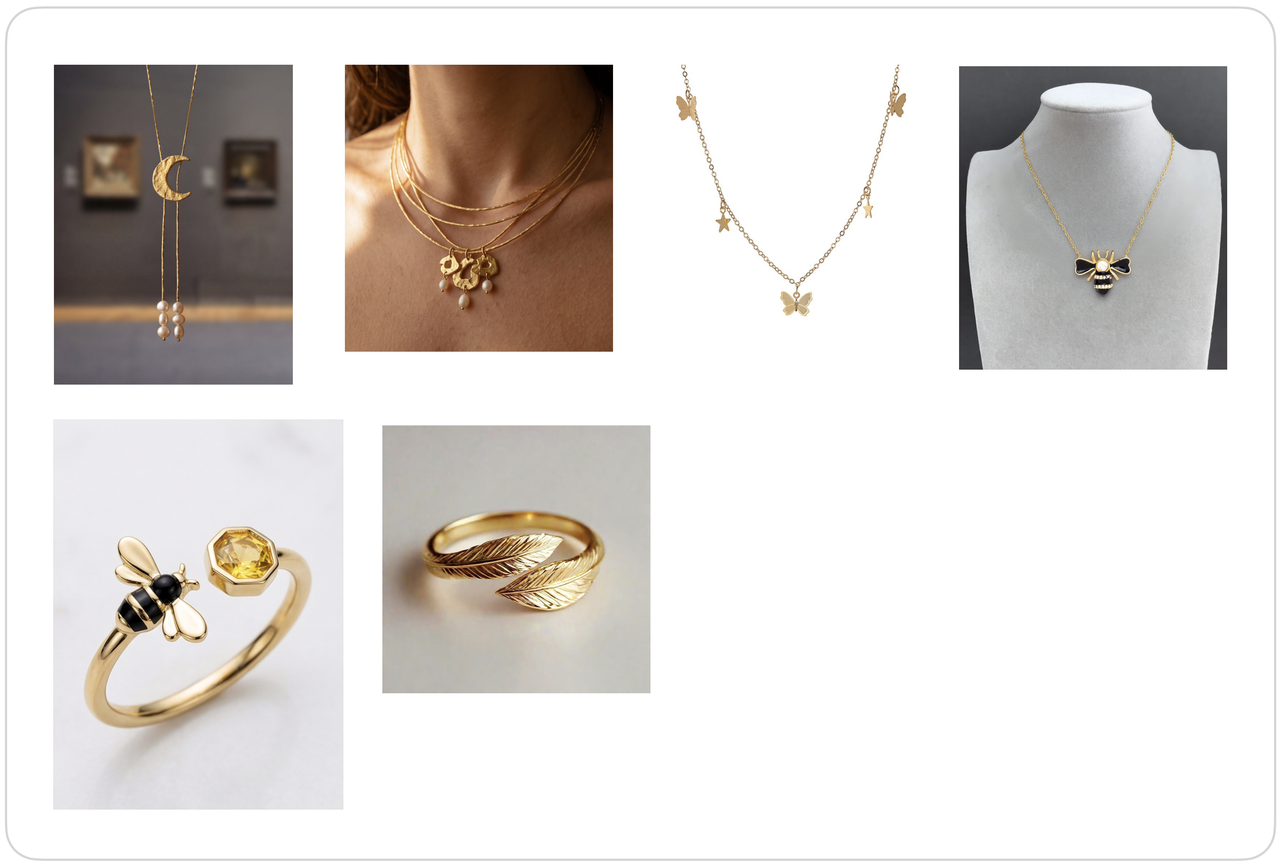
Choose a high-quality reference image with a clearly positioned subject and a visible jewelry area. Results are generally more natural when the product and reference feature the same type of jewelry.
Step 3: Generate Your AI Jewelry Lifestyle Photo
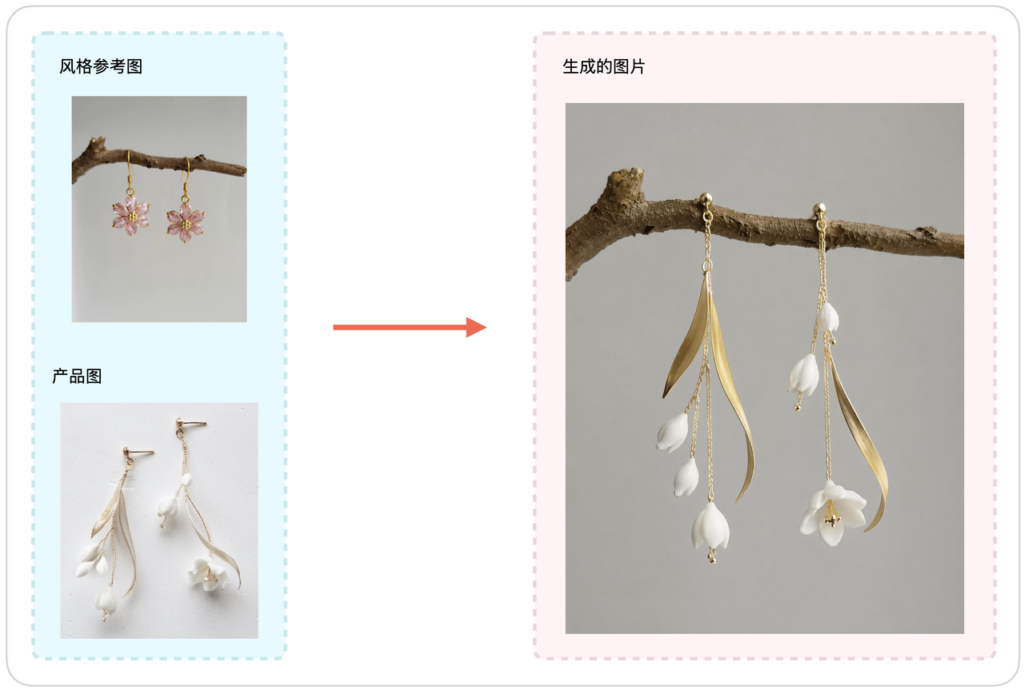
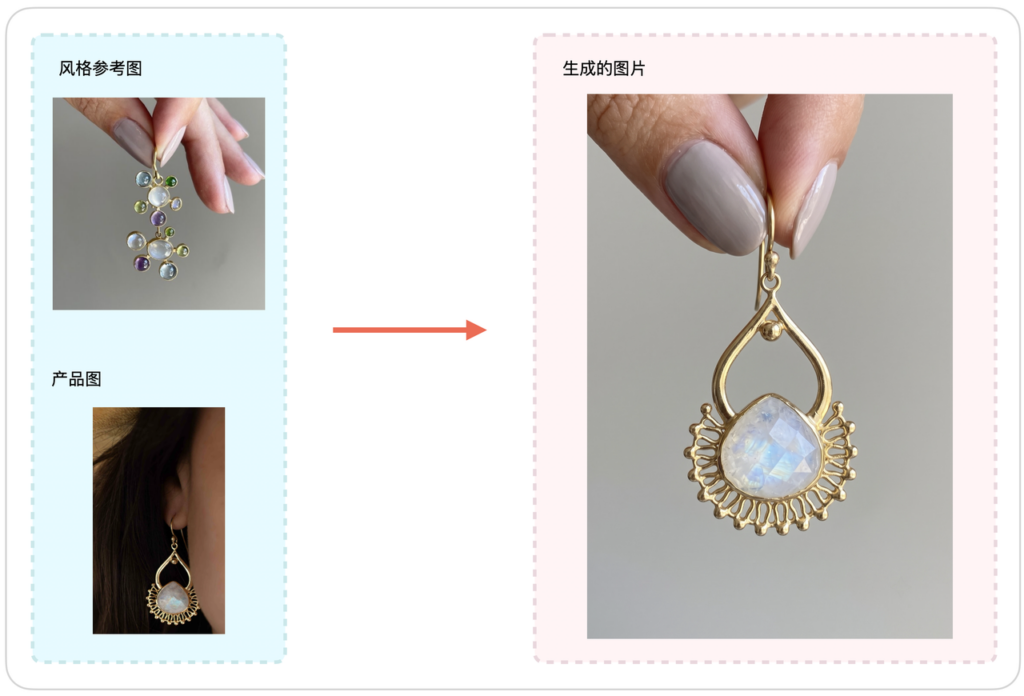
Once both images are uploaded, start the generation process. The AI replaces the jewelry in the reference scene with your product while preserving the original lighting, person, background, and visual style as closely as possible. After generation, check the product's shape, placement, scale, and details to make sure the result looks natural.
AI Jewelry Lifestyle Photo Examples
How to Use Batch Mode
Uploading more than one product image to Image 1 automatically activates batch mode. The tool pairs each jewelry product photo with the reference in Image 2 and generates a corresponding lifestyle image for every product. This is useful for quickly creating consistent visuals for an entire product collection.
Tips for Better Results
- Use a clear product image that shows the entire piece of jewelry without blur, heavy obstruction, or excessive glare.
- Make sure the jewelry area in the reference image is easy to see so the AI can determine the correct size and placement.
- Match the reference to the product type. For example, use an earring reference image when generating an earring lifestyle photo.
- Before processing a large batch, test the reference with one product image to confirm that the style works well.
Summary
The AI Jewelry Lifestyle Photo Tool places jewelry products into reference scenes and reduces the time required for traditional photography and post-production. Clear product photos and suitable style references are the keys to natural-looking results, while batch mode makes it faster to create images for multiple products.