
Want to quickly create clean, professional e-commerce white background images without spending a lot of time on Photoshop retouching? This article AI E-commerce White Background Image Generator TutorialThis will introduce how to use TheMiniTech's AI White Background tool to convert ordinary product images into professional product photos suitable for e-commerce platforms, independent websites, and social media displays..
This is an all-category AI product image tool, not only suitable for clothing and accessories, but also capable of handling various products such as household items, digital products, beauty products, food, and accessories.. For clothing images, the tool can also appropriately smooth out wrinkles, making the product look neater, more natural, and more professional..
Open AI E-commerce White Background Generator Now
What can the AI E-commerce White Background Generator do?
The AI White Background Generator automatically cleans up backgrounds, optimizes visual performance, and generates images better suited for product displays based on the product images you upload.. It is particularly suitable for the following scenarios:
- Processing ordinary product photos into clean, unified white-background product images..
- Appropriately reduce clothing wrinkles to make the garment display flatter and closer to professional studio photography effects..
- Quickly create e-commerce main images or product display images for different categories of goods..
- Upload multiple images at once to batch generate product images, improving the efficiency of listing and creating materials..
Video Tutorial
AI E-commerce Product Cutout Generator Steps
Step 1: Open the tool
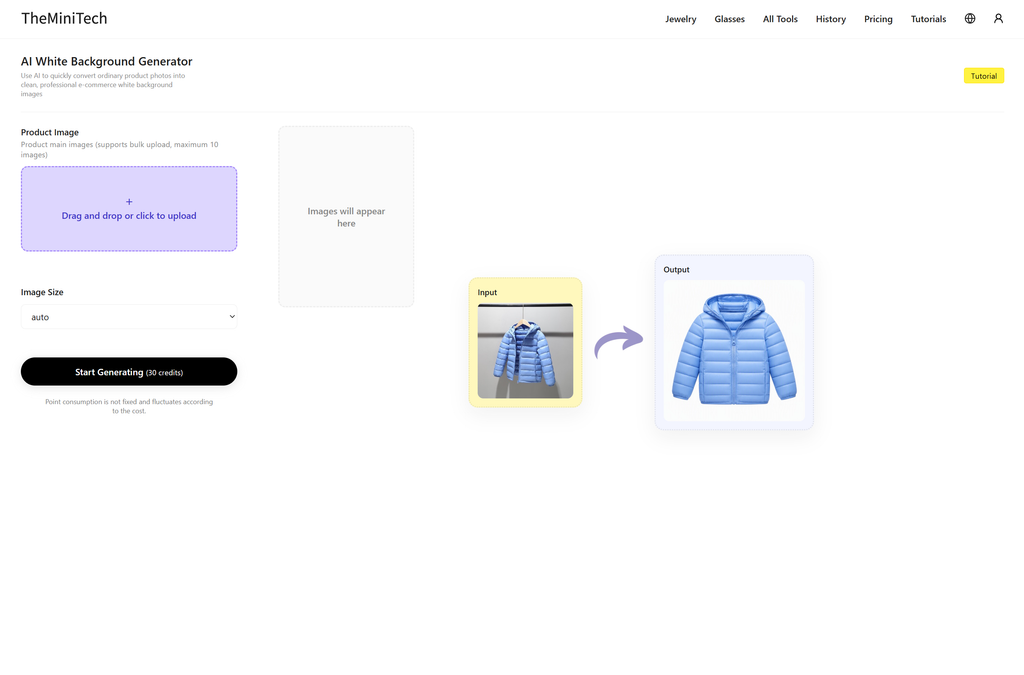
Enter AI White Background GeneratorPage. The tool interface is very simple to operate; the core process involves uploading product images, selecting the output size, and then waiting for the generated results..
Step 2: Upload product images
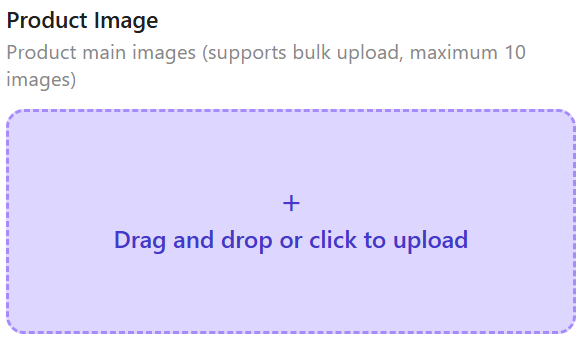
Drag the product images you need to process into the upload area, or click the upload button to select files from your computer.. It is recommended to prioritize using images with a complete subject and high clarity. The clearer the product edges, the easier it is for AI to identify the product outline and material..
If you only need to process one image, simply upload a single product photo directly.. If you want to batch create white background images, you can drag and drop multiple images into the upload area at once. The subsequent steps are exactly the same as generating a single image..
Step 3: Select Image Size
After the upload is complete, select the image size to be generated. When selecting, focus on confirming whether the aspect ratio meets the final use:
- Main product images typically use a square or near-square aspect ratio.
- Mobile detail pages, social media, and short video covers can opt for a vertical aspect ratio.
- Website banners, ad materials, or desktop display images are more suitable for a horizontal aspect ratio.
If you are unsure which size to choose, you can set it according to the image requirements of the target platform first. Correct proportions can reduce subsequent cropping and maintain a more reasonable white space for the product in the frame.
Step 4: Click generate and view results
After confirming the image and dimensions, click the "Generate" button. Please keep the current page open during the generation process; do not refresh or close the browser. Once processing is complete, the generated image will appear on the right side of the page, where you can preview and download it.
For clothing images, AI will attempt to organize the scene and appropriately smooth out obvious wrinkles; for other products, the focus will be on maintaining the integrity and display effect of the product body.. The actual results will be affected by the clarity, lighting, and shooting angle of the original image..
Step 5: Batch generate product images with white backgrounds
If you need to process multiple images at once, simply drag multiple product images into the upload area, then select the size and click generate following the single-image process.. Currently, each generation supports up to 10 images. Batch processing is suitable for e-commerce new arrivals, items with many SKUs, or products requiring a unified visual style.
When generating in batches, it is recommended to keep the shooting angle, subject size, and background complexity as consistent as possible to ensure the final product images are more uniform.
Tips for achieving better white background results
- Use clear original images:Avoid uploading images that are severely blurred, over-compressed, or have the subject obscured.
- Keep the subject complete:Try to keep the entire product within the frame to avoid cutting off important parts..
- Choose stable lighting:Original images with even lighting make it easier to generate natural edges and shadows..
- Determine ratio in advance:Confirm the target platform for the image first, then select the corresponding output size.
- Keep batch images consistent:The closer the angles and subject proportions of the same batch of product images are, the more uniform the final display effect will be..
- Check details after generation:Focus on checking whether clothing folds, product edges, colors, textures, and small-scale structures are natural..
FAQ
Is this tool only suitable for clothing images with white backgrounds??
No. It is an all-category AI product image tool. In addition to clothing and accessories, it can also be used for home decor, digital products, beauty, food, and other e-commerce products.. Clothing images are just one common application scenario..
Can multiple images be generated at once??
Yes. You can drag multiple images into the upload area at once for batch processing; currently, a maximum of 10 images can be generated per time..
Where will the generated images be displayed??
Once the generation is complete, the results will be displayed on the right side of the page. Please do not close the current page during processing to avoid task interruption.
Why is the generation result not ideal??
Common reasons include blurry original images, obscured products, low lighting, improper aspect ratios, or excessive cropping of the subject.. It is recommended to replace with a clear original image, adjust the output ratio, and generate again..
Summary
With this AI e-commerce white background generator, you don't need complex photo editing experience. Simply upload your product image, select the appropriate size, and click generate to quickly create cleaner and more professional product displays.. The tool supports clothing, accessories, and various product types. it also supports processing up to 10 images at once, making it suitable for new e-commerce arrivals, batch production of main images, and unifying store visuals..
If you have other needs or encounter any problems, please feel free to provide feedback, and we will continue to improve the tool's features..