
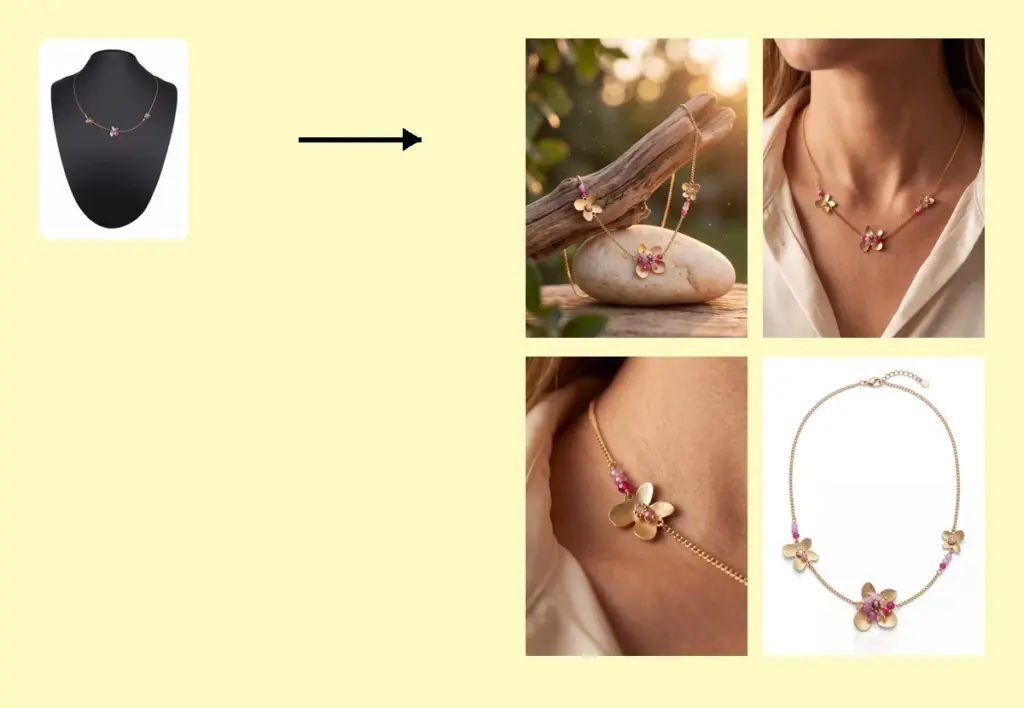
Upload one jewelry photo and generate 4 ecommerce-ready images with the AI Jewelry Product Photography Generator: 1 lifestyle image, 2 on-model images, and 1 retouched white-background photo.
Product Photo
Drag and drop or click to upload
Generating...
An AI jewelry image generator can turn one product photo into several ecommerce-ready views. This jewelry image set tool creates four results from one jewelry photo: one lifestyle image, two on-model images, and one retouched white-background product photo. Used as an AI product photo generator, it covers the core of a jewelry product photography set — scene, scale and catalog views — from a single upload, without booking a studio. Use the set for product listings, independent stores, or marketing creatives when you need more than a single catalog view.
Upload the jewelry photo, choose an aspect ratio for the placement, and generate the set. The page supports square, portrait, landscape, widescreen, and mobile-portrait ratios. Credit use can vary with generation cost, so check the amount shown in the tool before starting.
Upload one clear jewelry photo, select an aspect ratio, and start generation. The tool returns a four-image set with one lifestyle image, two on-model images, and one retouched white-background photo.
For everyday listing content, it covers most of what a basic shoot produces: a lifestyle scene, on-model scale views, and a clean white-background catalog photo. It works from a photo you already have, so it suits new listings, restocks and ad variations. For hero campaign images or pieces where every reflection has to be art-directed, a traditional shoot still gives more control — many sellers use AI sets for the listing and save studio time for flagship products.
Yes. New accounts get 150 free credits, so you can generate your first sets and check the quality against your real products before buying a plan. See pricing for credit plans.
Use the product-photo upload and ratio selector to create multiple ecommerce views from a jewelry image. The current input area asks for the jewelry photo; it does not ask you to upload a separate model photo.
Yes. One of the four results is a retouched white-background product photo. Review the background and the jewelry details against your original image before using it in a listing.
One generation uses 50 credits and returns 4 images — 1 lifestyle image, 2 on-model images and 1 retouched white-background photo — about $0.07 per set, or under $0.02 per image, at the 22,000-credit pack rate ($32). Credit use can vary, and the exact amount is shown before you generate.
If you only need a single view, the dedicated tools go deeper: clean up an existing photo with the AI jewelry photo editor, or put one piece on your own model photo with the AI virtual jewelry try-on. For more ideas, browse the English tutorials.