
Jewelry size and proportion are common problems in AI try-on images. Earrings may appear too large, necklaces may look too short or long, and rings can become oversized compared with the model’s hand. In this guide, you’ll learn how to resize jewelry in AI try-on images using worn reference photos and percentage-based prompts.
The method works for earrings, necklaces, rings, and other accessories, helping you correct jewelry scale while keeping the existing model and try-on image as consistent as possible.
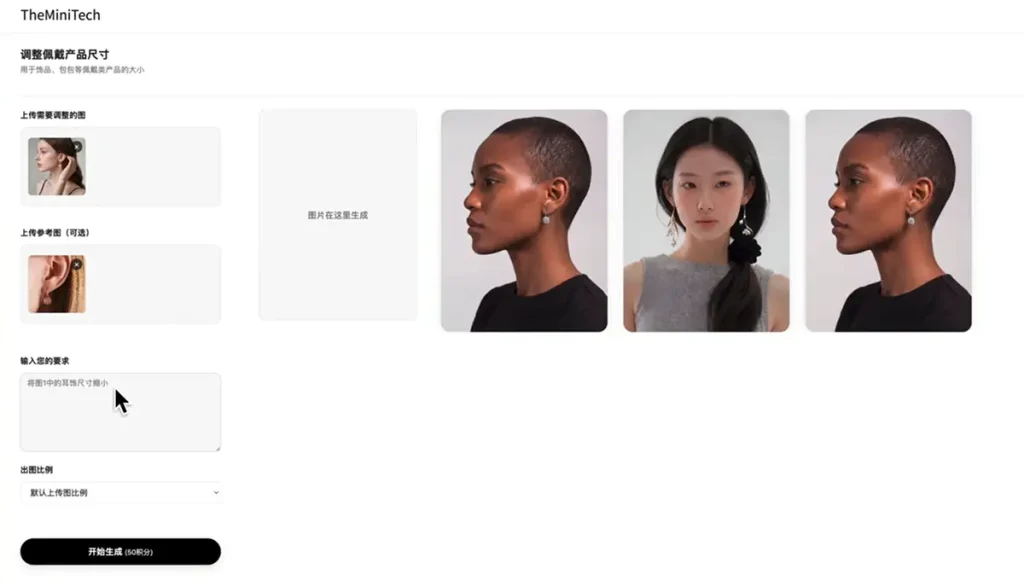
When Should You Resize a Product in an AI Try-On Image?
Resize the product when its proportions do not match a realistic wearing effect. Common problems include earrings that look too large, studs that appear too small, an unnatural necklace length, an overly thick ring, or jewelry that looks out of proportion to the model's face, neck, hand, or body.
The key is not simply telling the AI to make the product bigger or smaller. Your prompt should reflect whether you have a worn reference image that shows the intended real-world scale.
How to Resize Jewelry with a Worn Reference Image
If you have a reference photo showing the jewelry being worn, the AI can use it to estimate a realistic size on the model. In this case, the prompt can be natural and does not always need an exact percentage.
For example, use this prompt to make earrings smaller:
Reduce the size of the earrings in Image 1.Because the worn reference provides a visual scale, the AI can estimate how much to reduce the earrings. You can use similar instructions for other products, such as “Make the necklace in Image 1 slightly larger” or “Reduce the size of the ring in Image 1.”
How to Resize Jewelry Without a Worn Reference Image
If you do not have a worn reference image, or your reference is only a product photo on a plain background, the AI has less information about real-world scale. Specify the adjustment as a percentage to make the result more predictable.
For example:
Reduce the size of the earrings in Image 1 by 20%.Adding “by 20%” gives the AI a clearer target than simply asking it to make the earrings smaller. If the first result is not quite right, try a smaller or larger adjustment such as 10%, 15%, or 25%.
Step-by-Step: Adjust Product Size in an AI Image
- Open the Resize Try-On Product tool.
- Upload the AI-generated try-on image that needs correction.
- Add a worn reference image when one is available.
- Write a prompt that identifies the product and states whether it should be enlarged or reduced.
- If there is no worn reference, include a percentage such as 15% or 20%.
- Generate the image and compare the product scale with the model's face, neck, hand, or body.
Tips for More Accurate Product Resizing
- Use a worn reference image whenever possible so the AI can estimate a realistic product scale.
- Without a worn reference, clearly state the enlargement or reduction percentage in the prompt.
- Adjust one main issue at a time instead of changing the product size, background, pose, and style in a single request.
- Make several small adjustments when the result is far from the target rather than applying one extreme change.
- Use a sharp source image with clearly visible product edges and details.
Frequently Asked Questions
Do I need to specify a percentage?
Not always. A worn reference image gives the AI a visual guide, so a simple instruction such as “make the earrings smaller” may be enough. Without a worn reference, a percentage usually provides better control.
What percentage should I try first?
A 10% to 20% adjustment is a practical starting point. Review the result, then increase or decrease the percentage in small steps.
Can I resize necklaces and rings as well as earrings?
Yes. The same prompt structure works for earrings, necklaces, rings, and other products worn by a model. Name the exact product and describe the intended size change.
Summary
To resize jewelry in an AI try-on image, choose the prompt based on the available reference. With a worn reference image, the AI can estimate a realistic scale from a natural instruction. Without one, specify a percentage such as “reduce by 20%” or “enlarge by 15%.” Clear prompts and small, focused adjustments help produce more stable and realistic results.
Open the Resize Try-On Product tool to adjust the jewelry scale in your AI-generated image.