
AI Glasses Try-On helps eyewear sellers create realistic model-wearing images from a glasses product photo. In this AI Glasses Try-On Tutorial, you’ll learn how to prepare eyeglasses or sunglasses images, use an optional model photo, write effective prompts, and generate more natural virtual eyewear try-on results.
The tool is designed for eyewear ecommerce sellers, independent stores, product marketers, and designers who need model images for glasses, sunglasses, optical frames, and fashion eyewear without arranging a new photoshoot for every product.
What Is AI Glasses Try-On and How Does It Work?
For glasses, sunglasses, optical frames, and fashion eyewear, a standalone product photo is often not enough. Customers usually want to see how the frame looks on a face, including size, proportion, style, and overall impression. The AI glasses try-on tool places the eyewear product on a model’s face and generates a more realistic wearing effect image.
These images can be used for product pages, advertising creatives, social media content, style testing, and e-commerce visual previews. They are especially helpful when you need to evaluate how different frame styles look before creating final product photography.
How to Prepare Images for AI Glasses Try-On
1. Glasses Product Image Requirements
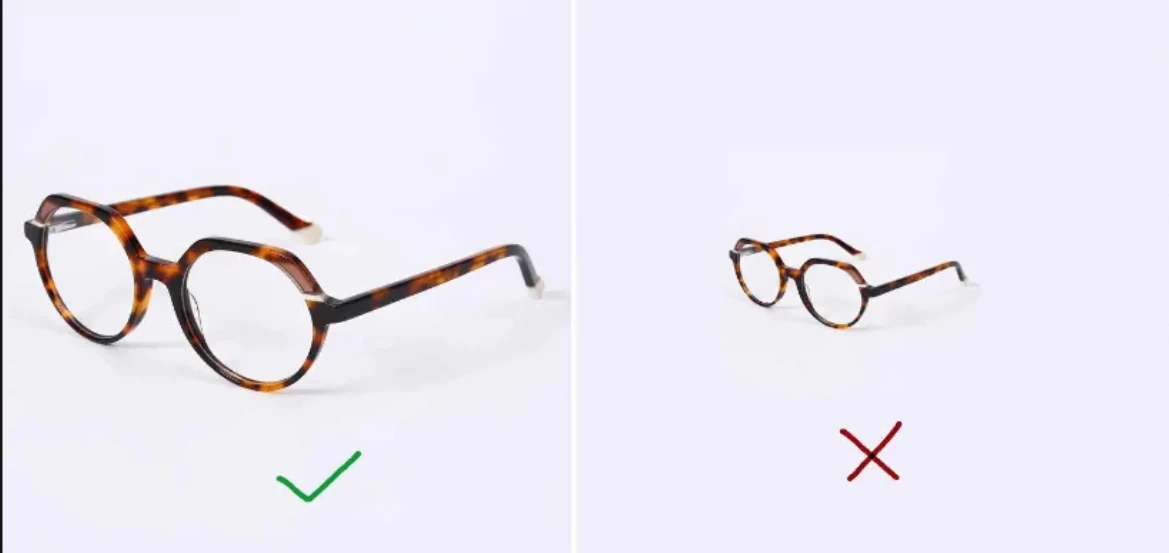
The glasses product image is the core input for generating a virtual try-on result, so it must be uploaded. Choose an image where the glasses are clear, complete, front-facing or close to front-facing, and not heavily distracted by the background.
For better results, the glasses should fill as much of the frame as possible. This makes it easier for the AI to recognize the frame outline, lens shape, material, color, and fine product details.
2. Is a Model Photo Required?
The model image is optional. If you already have a specific model or want to keep a particular person’s appearance, you can upload a model image. If you do not have a model image, you can describe the model in the prompt and let the AI generate a suitable person automatically.
Uploading a model image is helpful when you need a consistent brand model, a specific face shape, or a known audience style. Using only a prompt is more flexible when you want to test different demographics, scenes, or fashion moods.
3. Supported Image Formats
The tool supports common input formats including JPG, PNG, SVG, and WEBP. Before uploading, make sure the image is clear and easy to identify. Avoid files that are heavily compressed, too dark, overly reflective, or where the glasses are too small in the frame.
How to Write AI Glasses Try-On Prompts
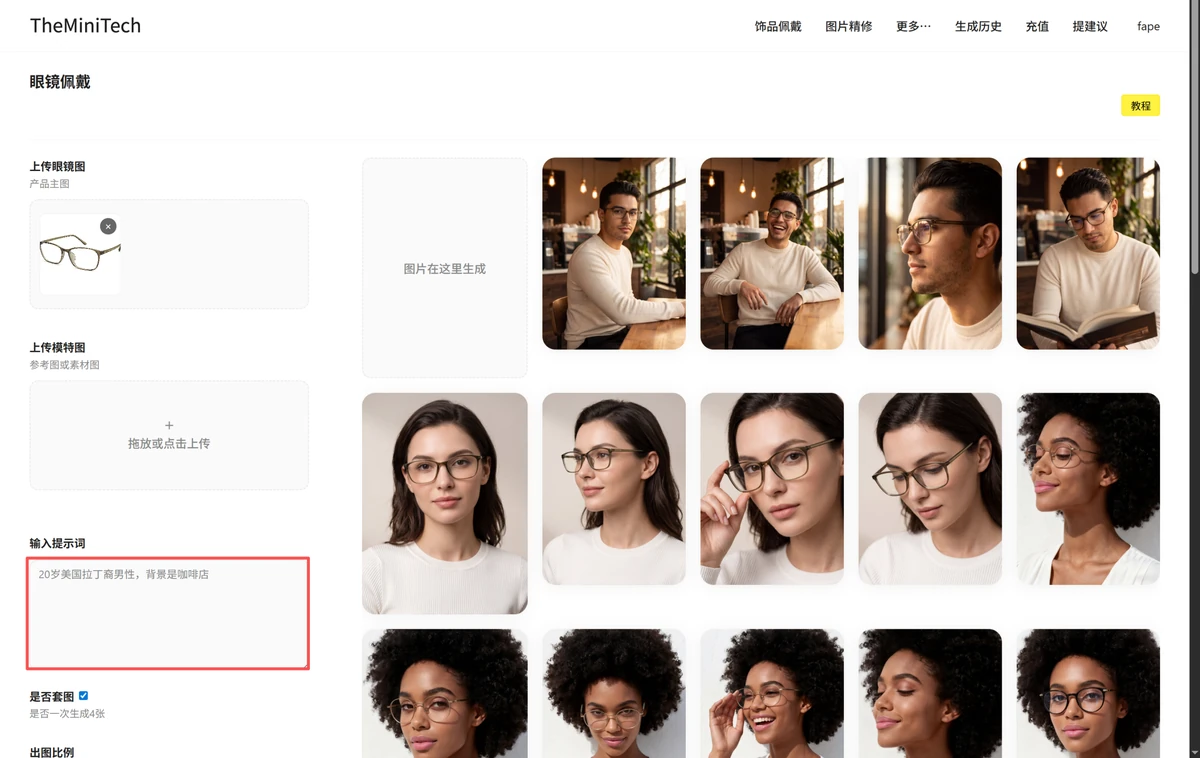
The prompt can describe the model and background, especially when you do not upload a model image. You can specify age, gender, ethnicity, style, scene, and background. For example:
20-year-old Latin American man, coffee shop backgroundThe prompt does not need to be long. Focus on the model characteristics and the background scene. If you only want to highlight the eyewear product, keep the prompt simple and avoid adding too many unrelated details.
Generated Results and Saving Notes
AI-generated images may occasionally contain small issues, such as unnatural frame placement, unusual facial occlusion, or product details that are not fully accurate. If this happens, generate the image again. A second attempt often produces a better result.
After the image is generated, download it to your local device as soon as possible. Server-side generated images are saved for about two weeks by default, and during testing there may still be a risk of file loss. Do not rely only on the online link for long-term storage.
How to Get Better AI Glasses Try-On Results
- Make the glasses product large enough in the input image.
- Use a front-facing or slightly angled glasses image to reduce complex perspective problems.
- If you want a specific audience, describe age, gender, ethnicity, and style in the prompt.
- For a more commercial look, add background scenes such as a coffee shop, street style, office, or outdoor sunlight.
- Download the generated image promptly to avoid temporary server file expiration or loss.
AI Glasses Try-On for Ecommerce Sellers
AI glasses try-on can be used to create model-wearing images for eyewear product pages, online stores, advertising creatives, social media posts, and style testing. Instead of arranging a separate model photoshoot for every frame, sellers can start with an existing glasses product image and generate different model or lifestyle presentations.
Conclusion
The AI glasses try-on tool helps eyewear products quickly generate realistic model-wearing images. The most important step is uploading a clear, complete, and large enough glasses product image. The model image is optional and can be added when you need a specific person or brand model.
If you do not upload a model image, use the prompt to describe the person and background. If the generated result occasionally looks wrong, try generating again and remember to download the final image as soon as it is ready.
FAQ
What is AI Glasses Try-On?
AI Glasses Try-On uses artificial intelligence to place glasses or sunglasses from a product image onto a model or portrait, creating a realistic eyewear-wearing image.
Do I need a model photo for AI Glasses Try-On?
No. A model image is optional. You can upload a specific model when you want to preserve a particular appearance, or describe the desired model in the prompt and let AI generate one.
What type of glasses image works best?
Use a clear, complete, front-facing or slightly angled product photo. The glasses should occupy a large part of the image so AI can recognize the frame shape, lenses, material, and details more accurately.
Can I use AI Glasses Try-On for sunglasses?
Yes. The tool can be used for eyeglasses, sunglasses, optical frames, and other fashion eyewear.
How can I make AI glasses try-on results more realistic?
Use a clear product image, avoid overly complex angles, choose a suitable model photo, and keep prompts focused on the model and background. If frame placement looks incorrect, generating another result may improve the output.
Try it here: AI glasses try-on tool.