
Want to create polished e-commerce product detail images quickly while keeping the layout, colors, and visual direction close to a reference design? This AI e-commerce detail page tutorial shows how to use TheMiniTech’s AI e-commerce detail page generator to create high-quality product-page visuals from a product image and a reference image.
Unlike a standard text-to-image workflow, the tool’s Style Replication mode analyzes both the product and the target design. This makes it easier to control composition, color palette, typography, image ratio, and the overall mood of the page—even when you do not have a professional product photography or design team.
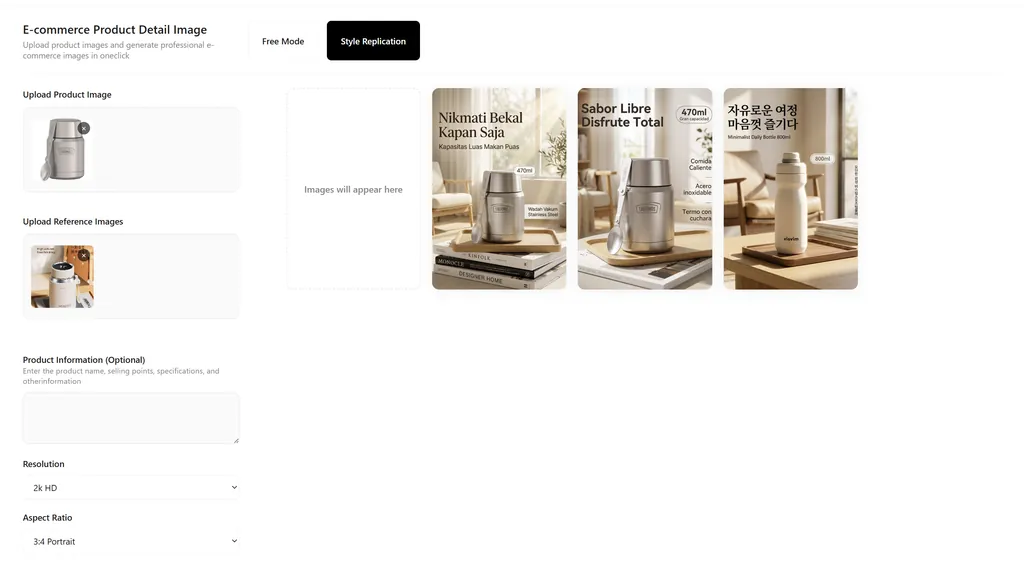
Why Use Style Replication Mode?
The AI product detail page tool provides two main workflows: Free Mode and Style Replication mode. Free Mode only requires a product image and is useful for exploring ideas quickly, but the layout, color treatment, and visual style are less predictable.
If you already have a product page, advertisement, or product showcase image whose design you like, choose Style Replication. The tool references both your product image and the target design, keeping the product as the main subject while reproducing the reference image’s composition, proportions, typography, and visual atmosphere as closely as possible.
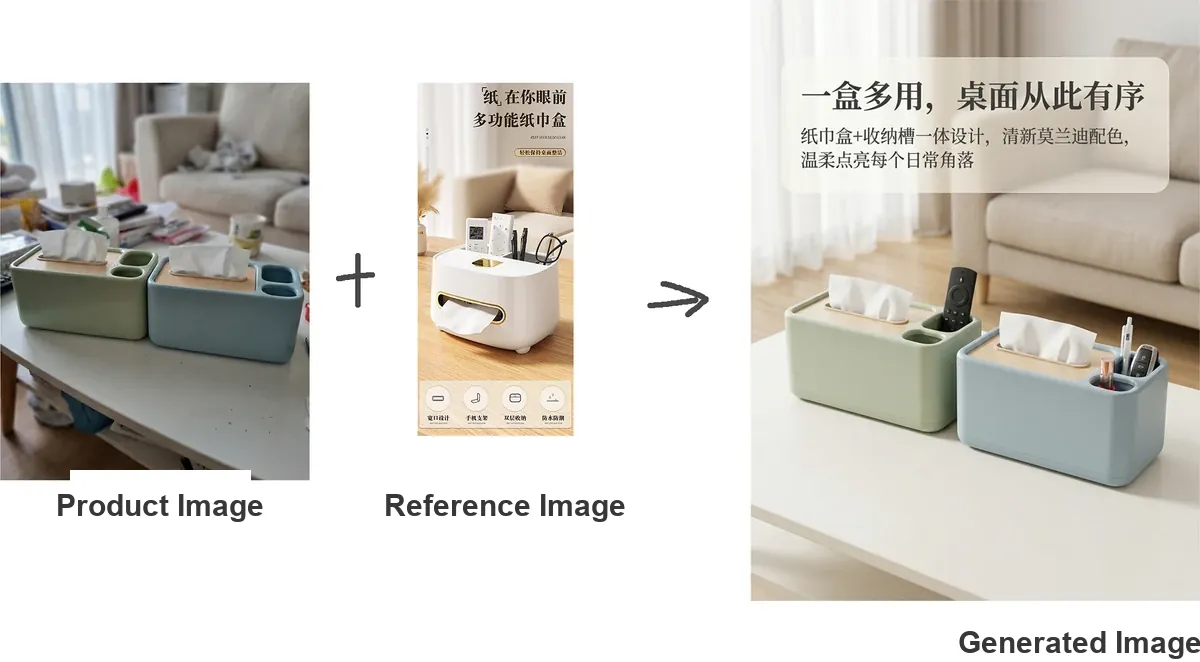
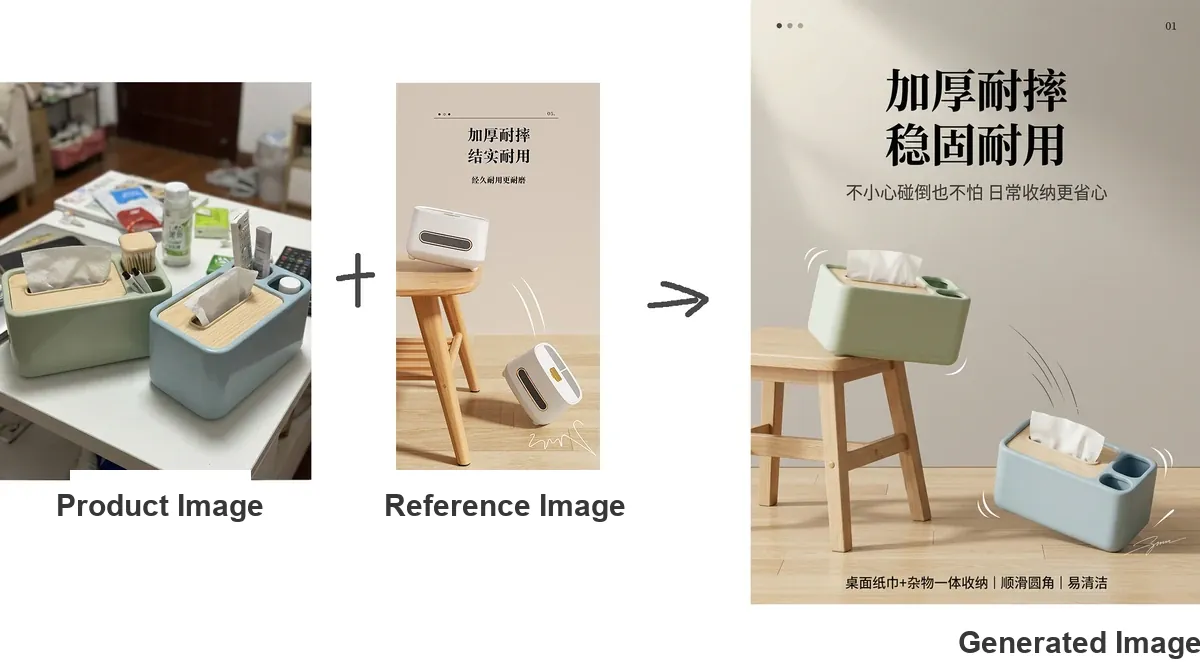
AI E-Commerce Detail Page Tutorial: Step-by-Step Workflow
Step 1: Open the Tool and Choose Style Replication
Open the AI e-commerce detail page generator and select “Style Replication.” The first upload area is for your product image, while the second upload area is for the reference image.
The tool supports common image formats, including PNG, JPG, SVG, and WEBP. Before uploading, make sure the image is sharp, the product is fully visible, and the subject is not excessively cropped or hidden by a complicated background.
Step 2: Upload the Product Image
You can upload one to three product images. At minimum, use one clear image that shows the complete product. A professional studio photo is not required; a well-lit phone photo can also work if the product outline is clear and the background is reasonably simple.
If the reference design includes a close-up, special angle, or important product detail, upload an additional detail image when possible. More useful visual information helps the AI understand the product’s shape, material, and color, which can improve consistency in the generated result.
Step 3: Upload the Reference Image
The reference image is the product page or design you want the AI to learn from. It can be a complete long-form detail page or a single section. To explore different layouts, upload multiple reference images and compare the results.
In most cases, one reference image produces one corresponding result. A clear reference with an obvious layout, color palette, font style, and hierarchy gives the AI stronger visual guidance and usually produces a result closer to your target.
Step 4: Add Product Information
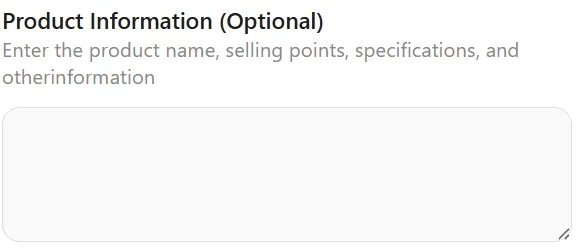
Product information is optional, but it is recommended for products with complex structures, uncommon use cases, or several important selling points. Keep the description concise and include the product name, intended use, key benefits, target audience, and any feature you want the image to highlight.
For example, for a portable coffee maker, you could write: “Designed for camping and in-car use, with fast extraction and a compact body.” This context helps the AI understand the product and choose more relevant copy, scenes, and visual emphasis.
Recommended Output Settings
Which Resolution Should You Choose?
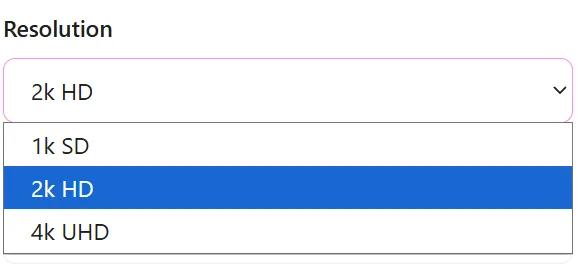
Choose 4K when you need multiple detail-page panels or want to preserve more fine details for cropping and layout work. For a single image, a style test, or a normal preview, 2K is usually sufficient and often provides faster, more stable processing.
Which Aspect Ratio Works Best?
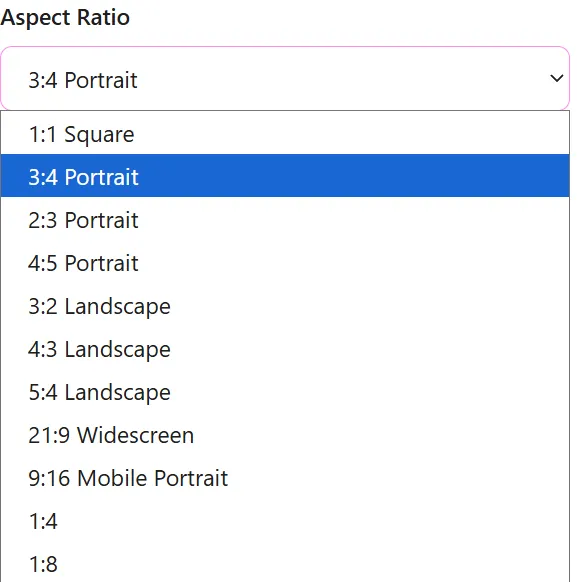
Keep the output ratio close to the reference image whenever the composition matters. For mobile product pages and social-media creatives, 9:16 or 3:4 are useful starting points. For desktop banners, product-page modules, or ad placements, match the ratio required by the destination layout.
Avoid starting with extreme ratios such as 1:4 or 1:8. Very tall images are harder to generate and may produce blurred areas, incorrect text, or unstable details. A safer workflow is to generate a single panel or shorter image first, then build the full page section by section.
Copy Language, Target Market, and Sales Channel
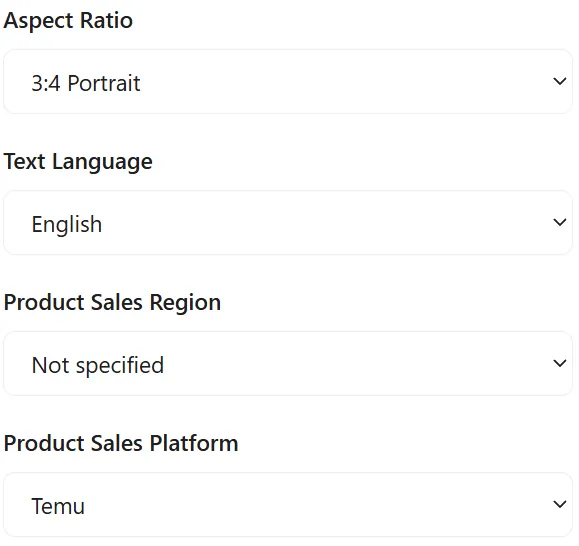
The copy-language setting controls the language of text that appears in the generated image. Select English for an English product page and Chinese for a Chinese e-commerce page.
The target market and sales-channel fields are optional. If you are creating assets for US Amazon, TikTok Shop, Shopee, or a standalone store, specify the relevant market and channel so the generated copy and scene direction better match the expectations of that audience.
Step 6: Generate and Review the Result
After confirming the product image, reference image, and output settings, click “Generate.” Keep the page open while processing. The generated image will appear on the right side of the interface.

Tips for Better AI Product Detail Page Results
- Use a sharp product image with the entire subject visible; avoid blur, strong glare, and heavy occlusion.
- Choose a reference with clear composition, colors, typography, or layout instead of a visually cluttered page.
- Keep product information concise and focus on the use case, key benefits, and details that must be highlighted.
- Start with 2K and a standard aspect ratio. Move to 4K or add more references after the overall direction looks right.
- If the text in the image is weak, adjust the copy language, refine the product description, or use a reference with less text.
- Generate several variations and check the product edges, materials, colors, text, and small details before commercial use.
Frequently Asked Questions
Does Style Replication copy the product in the reference image?
The tool primarily references the layout, atmosphere, and visual direction of the reference image. The product itself is based on the product image you upload. Use images you own or are authorized to reference, and keep the two roles clearly separated.
Can I upload only one product image?
Yes. One clear product image is enough to start. If the product has multiple angles, complex construction, or important small details, adding supporting images can improve the result.
Should I choose 2K or 4K?
2K is suitable for testing, previews, and standard placements. Choose 4K when you need to crop, enlarge, or assemble multiple detail-page sections. A practical workflow is to test the design in 2K and create the final version in 4K.
Conclusion: Create E-Commerce Detail Page Images Faster
Style Replication is the better choice when you need a stable visual direction for an AI-generated e-commerce detail page. Start with a clear product image and a suitable reference, add only the product information that matters, and choose a sensible resolution and aspect ratio. You can then create polished assets for standalone stores, e-commerce marketplaces, and social-media campaigns more efficiently.
Try it now: AI e-commerce detail page generator