
AI image replication tool help jewelry sellers recreate the composition, lighting, background, and overall mood of a reference photo without reusing the original image. In this tutorial, you will learn how to upload a jewelry lifestyle image, choose the recommended model, control the output size, add an optional prompt, and generate an original image with a similar visual direction.
This method works well for model photos and product lifestyle images featuring earrings, necklaces, rings, bracelets, watches, and other accessories. Use reference images that you own or have permission to use, and treat them as creative direction rather than copying protected branding or artwork.
Open the AI Image Replication Tool
Video Guide: Recreate a Jewelry Lifestyle Photo with AI
The first minute of the video demonstrates the complete image-replication workflow: upload a reference image, select Model X, choose an output size or Auto, click Generate, and wait approximately one to two minutes for the new image.
What Is an AI Image Replication Tool?
An AI image replication tool analyzes the visual structure of a reference image and generates a new picture with a comparable composition and atmosphere. It can learn cues such as camera angle, subject placement, background styling, light direction, color balance, depth of field, and overall mood.
The goal is not to produce a pixel-for-pixel duplicate. The tool creates a new image inspired by the reference, which makes it useful for planning jewelry campaigns, developing consistent social-media visuals, and exploring product-photography concepts before arranging a full shoot.
Before You Start
- Choose a clear reference image with a composition and lighting style that match your goal.
- Use a reasonably sized image without heavy compression, watermarks, or large text overlays.
- Decide which elements should remain similar, such as the model pose, background, crop, or color mood.
- Identify anything that should change so you can describe it in the optional prompt.
How to Use the AI Image Replication Tool
Step 1: Open the Image Replication Tool
Go to the AI Image Replication Tool. The page provides an upload area for your visual reference along with controls for the model, prompt, and output size.
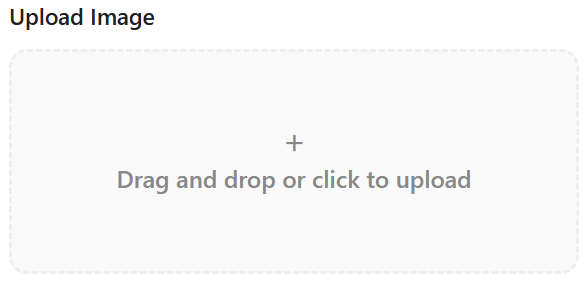
Step 2: Upload the Reference Image
Upload the image whose visual style you want to recreate. This can be a jewelry model photo or a product atmosphere image. A sharp reference makes it easier for the AI to understand the subject, framing, light, and background details.
Step 3: Add an Optional Prompt
The prompt is optional. Leave it empty when you want the AI to follow the reference closely. Add a short, specific prompt when you need to change the subject, product category, color palette, environment, or photography style.
For example:
- Luxury jewelry campaign, warm studio lighting, beige background, close-up portrait.
- Minimal product photography, soft shadows, pale gray background, premium editorial style.
- Elegant model wearing earrings, natural window light, clean beauty campaign.
Step 4: Choose the Image Size
Select the output size or aspect ratio that fits your intended use. Choose Auto if you do not have a specific requirement; this normally keeps the generated image close to the format of the uploaded reference. For product pages, a square or portrait layout is often useful, while wider images may suit banners and campaign headers.
Step 5: Click Generate
After confirming the reference image, model, optional prompt, and size, click Generate. Keep the page open while the task is processing. As shown in the video, generation usually takes about one to two minutes, although the exact time can vary with server load and image complexity.
How to Review the Generated Image
Do not evaluate the result only by whether it looks attractive. Compare it with the creative qualities you wanted to preserve:
- Composition: Is the subject positioned and cropped appropriately?
- Lighting: Does the light direction and softness feel consistent?
- Atmosphere: Are the colors, background, and overall mood suitable for your brand?
- Anatomy: Do the face, hands, ears, and other visible details look natural?
- Jewelry details: Check shape, symmetry, reflections, gemstones, clasps, and metal color.
If the first result is not suitable, simplify the prompt or use a cleaner reference image. Change one variable at a time so you can identify which adjustment improves the output.
Tips for Better Image Replication Results
- Use a reference with one clear subject and an uncluttered scene.
- Avoid very small, blurry, or heavily compressed source images.
- Describe only the changes you need instead of repeating every visible detail.
- Keep the output aspect ratio close to the reference when composition is important.
- Generate several variations and review small jewelry details before commercial use.
- Use only source images you are authorized to reference, especially for client and marketplace work.
Frequently Asked Questions
Does the tool copy the original image exactly?
No. It generates a new image that follows visual cues from the reference, such as composition, lighting, and atmosphere. Results vary between generations.
Is a prompt required?
No. The prompt is optional. Use it only when you want to guide specific changes or clarify the intended subject and style.
Which output size should I choose?
Select Auto when you want a format similar to the source image. Choose a defined ratio when the image must fit a product page, social-media post, advertisement, or website banner.
How long does generation take?
The video indicates approximately one to two minutes. Processing time can vary depending on demand, source-image complexity, and the selected model.
Create an Original Jewelry Image
The best AI image replication results begin with a strong reference, a clear idea of what should stay consistent, and a concise prompt for any intentional changes. Upload your reference, select the recommended model, choose Auto or a suitable output size, and generate a new visual that fits your jewelry brand.