
The AI Hairstyle Transfer tool helps generate a realistic model try-on image from a hairstyle or wig reference image and a model photo. It is useful for previewing wigs, hairstyles, hairpieces, and hair product visuals without arranging a new photoshoot for every style.
This tutorial explains how to upload hairstyle images and model images, how automatic batch mode works, and what to expect during generation. Clear input photos are the most important factor for getting stable and natural AI hairstyle transfer results.
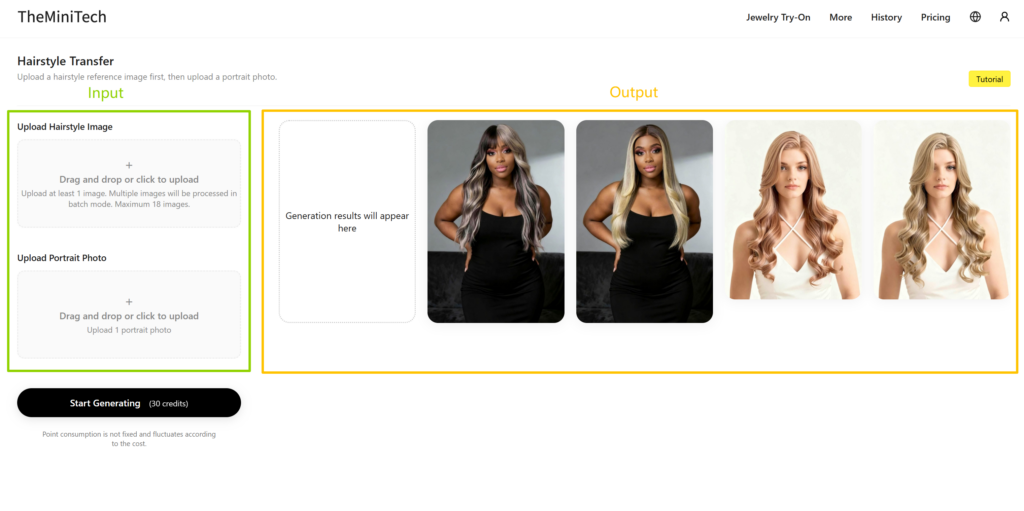
Upload the Images
Upload a Hairstyle or Wig Image
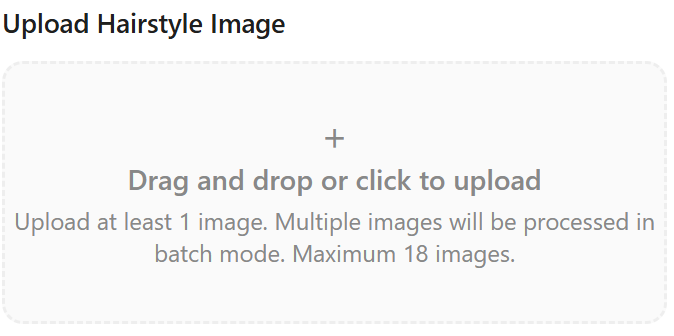
Click the plus button to select a hairstyle or wig image from your local computer. You can also drag and drop the image directly into the upload area. The tool supports common image formats such as JPG and PNG.
For best results, use a clear hairstyle image with a simple background. Avoid blurry photos, heavy shadows, crowded backgrounds, or images where the hairstyle is too small. A recommended image size is around 1000 px in width or height.
You can upload one or multiple hairstyle images. If you upload multiple hairstyle or wig images, the tool will automatically activate batch mode. It will process each hairstyle image with the same model photo one by one, such as Hairstyle Image 1 + Model Image, Hairstyle Image 2 + Model Image, and so on.
Upload the Model Image
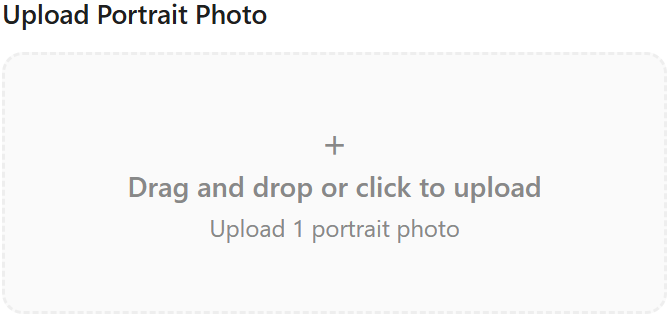
For the model image, choose a clear portrait or close-up photo where the head takes up a large part of the image. A closer portrait usually produces better hairstyle transfer results because the AI can read the face shape, head position, and hair placement more accurately.
The model image should also be sharp and high quality. Image clarity has a major impact on the final result. A recommended model image size is between 1000 px and 2000 px in width or height. The model upload area supports only one model image at a time.
How Batch Mode Works
Batch mode is triggered when you upload multiple hairstyle or wig reference images. This does not mean multiple model images are required. The tool will use one model image and apply each uploaded hairstyle reference in sequence.
This workflow is useful when you want to test several wig styles, hair colors, or hairstyle directions on the same model. It can save time during style comparison, product selection, and e-commerce visual planning.
Generate the AI Hairstyle Transfer Result
After uploading the hairstyle image and model image, click the start generation button. Each generation usually takes about 2 to 4 minutes. During the process, the progress may appear to stop around 90%. This is normal. Do not close the page, refresh the browser, or restart the task. Wait patiently until the generation is complete.
Tips for Better AI Hairstyle Transfer Results
- Use a clear hairstyle or wig reference image with a simple background.
- Choose a model portrait where the face and head are large enough in the frame.
- Avoid hairstyle images with heavy blur, strong shadows, or crowded backgrounds.
- Use batch mode when you want to test multiple hairstyles on the same model.
- Do not refresh or close the page if generation seems paused near 90%.
Conclusion
The AI Hairstyle Transfer tool is a practical way to preview hairstyles, wigs, and hair product looks on a model. The key is to prepare clear input images: one or more hairstyle references and one high-quality model portrait. If you upload multiple hairstyle images, the tool will automatically run them in batch mode with the same model image.
For wig sellers, hairstyle creators, e-commerce teams, and product marketers, this workflow can quickly produce useful hairstyle try-on visuals for comparison, product pages, and promotional materials.
Try it here: AI Hairstyle Transfer tool.